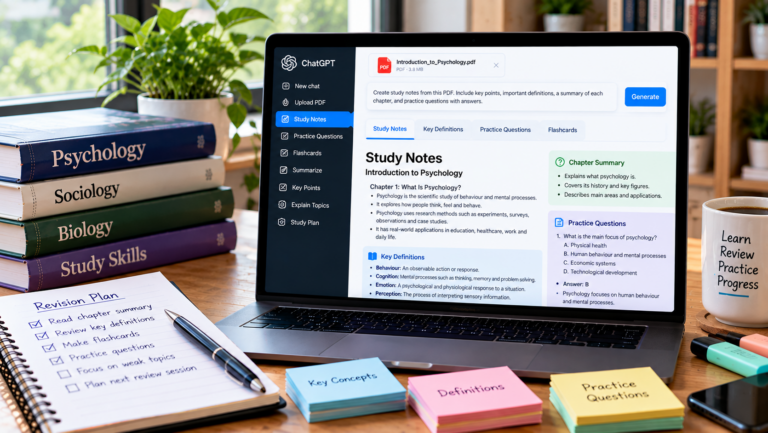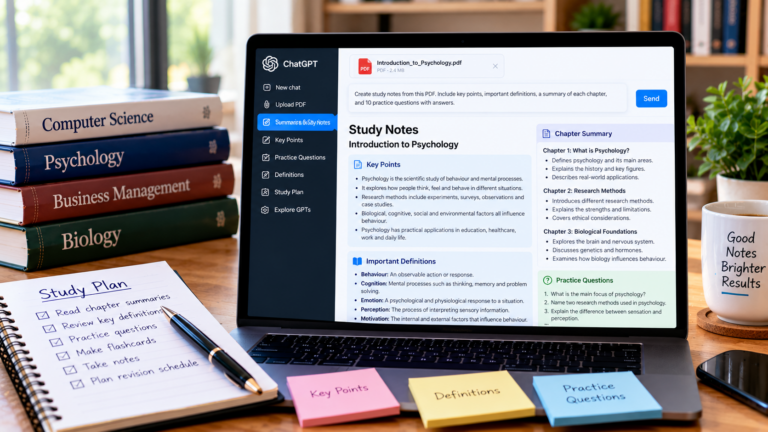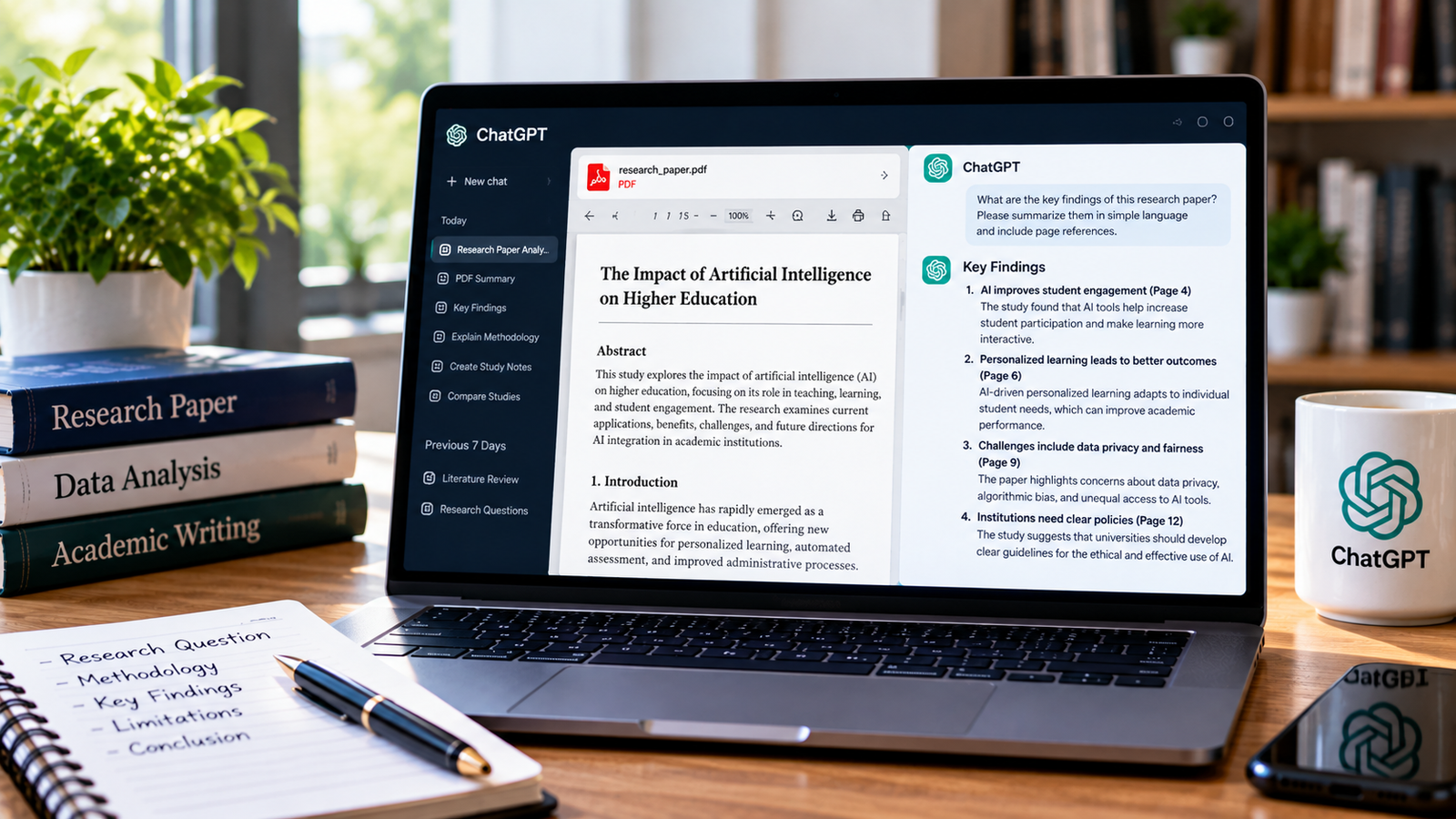
AI tools can help you identify the main ideas, important facts, conclusions, and recommended actions from a PDF. Instead of reading every paragraph first, you can upload the document, ask focused questions, and review a structured summary.
In this guide, you will learn how to extract key points from a PDF using AI, which prompts to try, and how to check the results for accuracy.
Why Use AI to Extract Key Points from a PDF?
AI can help you review long documents more efficiently. Depending on the tool and the document, it may help you:
- Identify the main ideas and supporting arguments.
- Find important facts, figures, and dates.
- Summarize individual sections or chapters.
- Extract research findings and conclusions.
- Turn a report into study notes or a checklist.
- Locate information relevant to a particular question.
AI is a useful assistant, but it is not a substitute for checking the original document. It may overlook details, misunderstand a table, or produce an incorrect statement. Always verify important information before using it in academic work, business decisions, or reports.
Method 1: Extract Key Points Using ChatGPT
ChatGPT can analyze supported uploaded files and answer questions about their contents. Availability and file limits may depend on your account and the type of document.
Follow these steps to get started.
Step 1: Prepare Your PDF
Find the PDF you want to analyze and save it somewhere easy to access. If the file is scanned, check whether the text is readable. A scanned document may require optical character recognition (OCR) before its contents can be analyzed reliably.
For best results, begin with a clear, readable document.
Step 2: Open ChatGPT and Upload the File
Open ChatGPT and start a new conversation. Use the attachment option to upload your PDF, if file uploads are available to you.
Wait until the file has finished uploading before asking questions. If the upload fails, check the file size, your internet connection, and whether the PDF is password protected or damaged.
Step 3: Ask for the Main Points
Do not simply ask for a summary if you need specific information. Explain exactly what you want extracted.
Try this prompt:
Read the attached PDF and extract the 10 most important key points. Use simple language, keep each point concise, and organize the results as a numbered list. Include page references when you can verify them from the document. Do not add information that is not supported by the PDF.
Review the result and decide whether you need more detail.
Step 4: Organize the Results
You can ask ChatGPT to arrange the information in a format that suits your task.
For example, request separate sections for main ideas, important facts, evidence, conclusions, and recommendations. For study purposes, you might ask for headings and revision notes. For a business report, you may prefer findings, risks, and next steps.
Step 5: Verify the Extracted Points
Compare the AI-generated points with the original PDF. Check numbers, names, dates, quotations, and page references carefully.
If a point seems unclear, ask ChatGPT to identify the passage that supports it. Open the cited page and confirm that the interpretation is correct.
For more guidance, see our related tutorial on how to summarize a PDF with ChatGPT.
Useful AI Prompts for Extracting Key Information
The quality of the result depends partly on how clearly you describe your task. Use the following prompts as starting points and adjust them to your document.
1. Extract the Main Ideas
Identify the main ideas in this PDF. List the 10 most important points in plain English. Add a short explanation for each point and avoid repeating the same information.
2. Find Important Facts and Figures
Extract the important facts, statistics, dates, percentages, and named entities from this PDF. Present them in a table with three columns: information, context, and page reference. If a value or page reference cannot be verified, mark it as unverified.
3. Extract Research Findings
Identify the research question, methodology, major findings, limitations, and conclusion in this paper. Separate the authors’ findings from any interpretation you provide, and include page references when available.
4. Create Study Notes
Turn this PDF into revision notes for a student. Use clear headings, short bullet points, definitions of important terms, and five review questions. Keep the notes faithful to the original document.
5. Extract Action Items from a Report
Review this report and identify any recommended actions, responsible teams or people if stated, deadlines if stated, and supporting evidence. Use a table. Do not invent an owner or deadline when the document does not provide one.
6. Summarize a Specific Section
Focus only on the section titled “[insert section title].” Extract its main argument, supporting evidence, and conclusion. Do not summarize unrelated sections.
How to Extract Key Points from a Long PDF
Long documents need a slightly different approach. Asking for every important detail in one prompt may result in an incomplete or overly general answer.
Use this process instead:
- Start with the document overview. Ask the AI to identify the title, purpose, major sections, and overall subject.
- Work through one section at a time. Request the key points from each chapter or section.
- Combine the results. Ask for a consolidated list that removes duplicate points while preserving important differences.
- Request supporting evidence. Ask for page references or short supporting passages that you can check in the PDF.
- Review the original document. Confirm the most important claims, especially any figures, qualifications, or exceptions.
This section-by-section method can be more reliable than requesting one short summary of a very long file.
Common Problems and How to Avoid Them
The AI misses important details
Ask for a structured extraction instead of a general summary. Specify the information you need, such as dates, findings, risks, or definitions. For lengthy PDFs, process separate sections individually.
The answer includes incorrect information
AI systems can make mistakes. Ask for evidence from the uploaded document and verify the relevant passage yourself. Do not rely on an answer simply because it sounds confident.
Page references are incorrect
Page numbering in a PDF viewer may differ from the printed page numbers in the document. Ask the tool to identify the relevant heading or quote as well, then confirm the location manually.
The PDF contains scanned pages
Scanned pages may contain images rather than selectable text. Use OCR to make the text searchable, or upload a clearer version if the tool supports it. Tables, diagrams, and handwritten notes may still require manual review.
The PDF contains confidential information
Check your organization’s policies and the AI service’s privacy terms before uploading sensitive documents. Remove personal, financial, or confidential details when they are not necessary for the task.
Can AI Extract Key Points from Any PDF?
Not always. Results depend on the document’s quality, length, structure, language, and the capabilities of the selected tool.
Text-based PDFs are often easier to analyze than low-quality scans. Complex tables, charts, equations, and multi-column layouts can be harder to interpret. Some tools also have upload limits or may not process every page in the same way.
For important work, use AI to speed up your first review, then confirm the results against the source document.
Final Thoughts
Extracting key points from a PDF using AI can make studying, research, and document review more manageable. Start by uploading a readable file, ask a specific question, and request an organized list of findings with supporting references.
For the best results, use focused prompts, process long documents in sections, and verify important details in the original PDF. AI can help you find information faster, while your own review ensures the final notes remain accurate and useful.
Related reading: How to summarize a PDF with ChatGPT and How to ask ChatGPT questions about a PDF.
About the Author