Have you ever received a PDF document written in a language you do not understand? It might be a research paper, business report, user manual, educational document, or an important letter. Translating a lengthy PDF manually can take hours, especially when it contains technical terms or complicated sentences.
ChatGPT can help you translate a PDF into another language, explain unfamiliar expressions, and make difficult passages easier to understand. You can also ask it to translate specific pages or sections instead of processing the entire document.
In this guide, you will learn how to translate a PDF with ChatGPT, use effective translation prompts, handle scanned documents, and review translations for accuracy.
Can ChatGPT Translate a PDF?
Yes. ChatGPT can help translate text from supported PDF documents into different languages.
Depending on the file and available features, you can use ChatGPT to:
- Translate PDF text into English, Spanish, French, Arabic, Urdu, and other languages.
- Translate individual paragraphs, pages, or sections.
- Explain difficult words and technical terminology.
- Rewrite translated text in simpler language.
- Create bilingual text for comparison.
- Summarize a translated document.
- Help preserve headings and document structure in the translated text.
However, ChatGPT may not preserve the original PDF layout perfectly. Complex tables, scanned pages, images, and unusual formatting can require additional work.
For official, legal, medical, or financial documents, use a qualified translator when accuracy or certification is required.
How to Translate a PDF with ChatGPT
Follow these steps to translate a PDF into your preferred language.
Step 1: Open ChatGPT
Visit ChatGPT and sign in to your account.
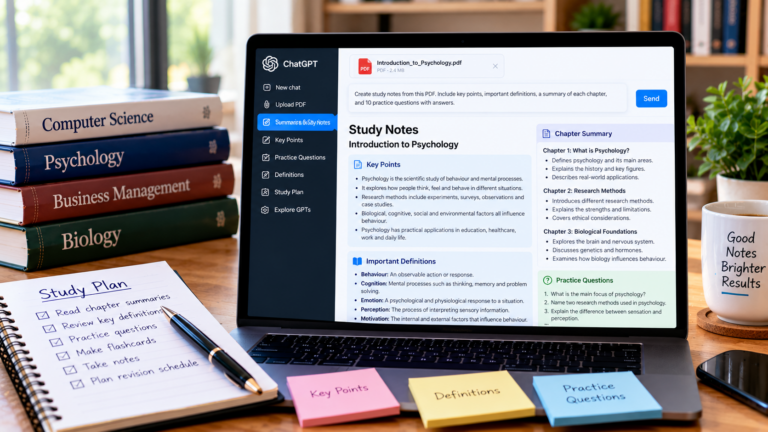
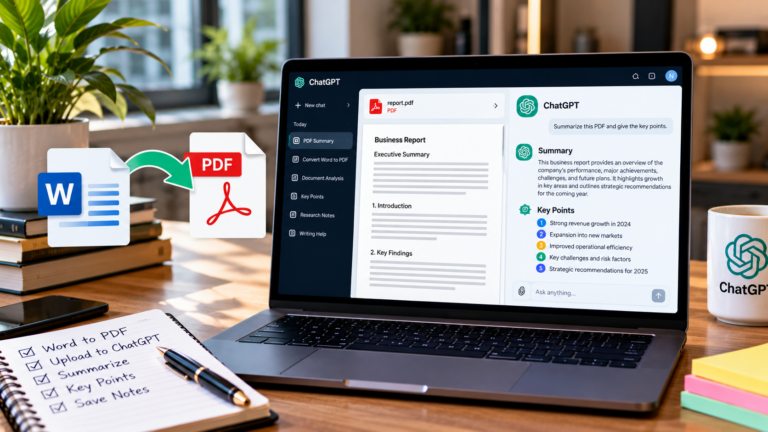
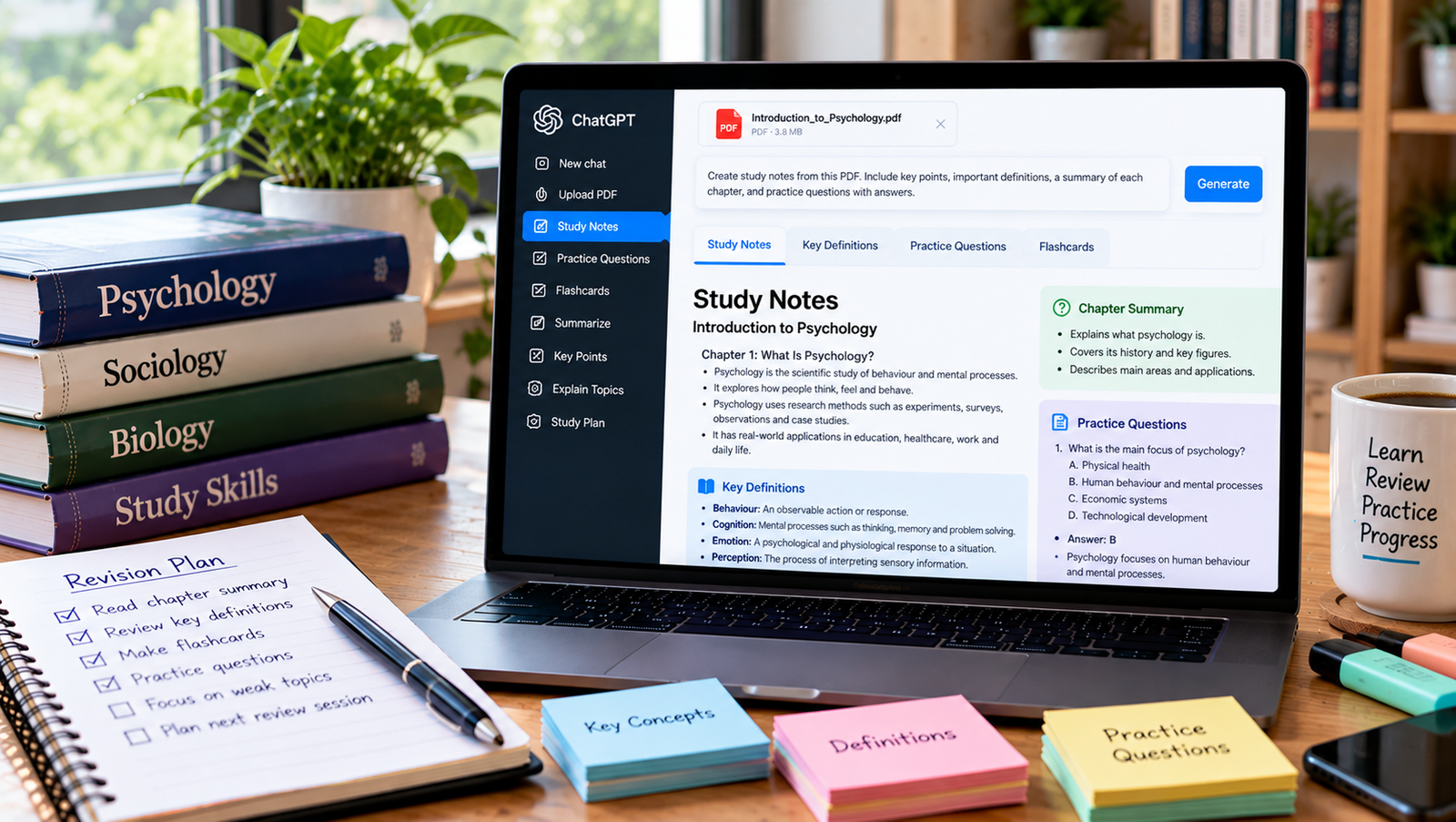
Start a new conversation. If document uploads are available, you can attach your PDF directly.
The available upload features and usage limits depend on your account and the current service offering.
Step 2: Upload Your PDF Document
Select the attachment option and choose the PDF you want to translate.
Wait for the file to finish uploading.
Before proceeding, make sure the document is readable. A PDF containing selectable text is generally easier to process than a low-quality scanned document.
Step 3: Enter a Translation Prompt
Once the PDF is attached, tell ChatGPT which language you want to translate it into.
For example:
Translate the attached PDF from English into Urdu. Preserve the original meaning, headings, and paragraph structure as closely as possible. Use natural, easy-to-understand Urdu. Do not summarize or omit information. If any text is unreadable, clearly identify it instead of guessing.
Replace English and Urdu with your required languages.
For a lengthy document, ask ChatGPT to translate one section at a time.
Step 4: Review the Translation
Read the translated text and compare important sections with the original document.
Pay particular attention to:
- Names and addresses.
- Dates and numbers.
- Technical terms.
- Tables and measurements.
- Legal or contractual wording.
- Instructions and warnings.
AI translations can contain errors or omit important details, so do not assume the first result is perfect.
Step 5: Save the Translated Document
After reviewing the translation, copy it into Microsoft Word, Google Docs, or another document editor.
Restore any formatting that did not transfer correctly, including headings, tables, and page breaks.
You can then export the translated document as a PDF.
If your ChatGPT session supports creating downloadable files, you can also ask it to prepare a document containing the translation. Check the resulting file before using it.
Best ChatGPT Prompts for PDF Translation
Different documents require different translation instructions. These prompts can help you get more useful results.
1. Translate an Entire PDF
Translate the attached PDF into [target language]. Preserve the original meaning and translate all readable text. Keep the headings, numbered lists, and paragraph structure. Do not shorten, summarize, or add information. If the document is too long, translate it section by section.
2. Translate a PDF into Simple English
Translate this PDF into clear, simple English. Preserve the original meaning and important terminology. Explain difficult expressions where necessary, but keep explanations separate from the translation.
This is useful for students and readers who want to understand unfamiliar material.
3. Translate a Research Paper
Translate this research paper from [source language] into [target language]. Preserve academic terminology, methodology, findings, numerical data, and references. Do not change the authors’ conclusions. Flag ambiguous expressions for review.
For more research-related guidance, read our article on how to summarize a research paper with AI.
4. Translate a Business Document
Translate this business document into [target language]. Use professional business language while preserving the original meaning. Keep all figures, dates, names, and contractual terms unchanged where appropriate. Identify any terminology that may require human review.
5. Create a Bilingual Translation
Translate this document into [target language]. Present the original text and translated text side by side in a two-column table. Keep corresponding paragraphs together and do not omit information.
This approach makes it easier to compare the original and translated versions.
6. Translate a Specific Page or Section
Translate only the section titled “[section name]” from the attached PDF into [target language]. Preserve the headings and details. Do not translate unrelated sections.
This can save time when you only need part of a lengthy document.
How to Translate a Scanned PDF with ChatGPT
Some PDFs contain scanned images of printed pages rather than selectable text.
These documents can be harder to translate because the text must first be recognized.
Step 1: Check Whether the PDF Is Scanned
Open the PDF and try selecting a sentence with your cursor.
If you cannot select the text, the page may be image-based.
Step 2: Convert the Scan into Searchable Text
Use an optical character recognition (OCR) tool to extract text from the scanned pages.
OCR software attempts to recognize letters and words inside images.
Step 3: Check the Extracted Text
Review the OCR output for errors, particularly in names, numbers, tables, and unusual characters.
Step 4: Translate the Text
Upload the searchable PDF or paste the extracted text into ChatGPT.
Request the translation using a clear prompt.
Step 5: Compare the Translation with the Original
Check important passages against the scanned document.
OCR mistakes can affect the translation, so reviewing both the extracted text and translated result is important.
How to Preserve Formatting When Translating a PDF
A common challenge is maintaining the original document’s appearance.
ChatGPT can help organize translated text, but it may not reproduce the original PDF design exactly.
For better results:
- Ask ChatGPT to preserve headings and numbered sections.
- Translate long documents section by section.
- Keep tables separate when necessary.
- Use a document editor to rebuild complex layouts.
- Check page breaks and paragraph spacing.
- Export the reviewed translation as a new PDF.
If your PDF contains diagrams or charts, inspect them manually because important information may appear inside the images.
Can ChatGPT Translate PDFs into Urdu?
Yes. ChatGPT can help translate PDF text into Urdu, including educational content, general business documents, articles, and instructions.
For example, you can use this prompt:
Translate the attached English PDF into natural, professional Urdu. Keep the original meaning accurate and use vocabulary suitable for Pakistani readers. Preserve headings and important technical terms. Where an English technical term is commonly used in Urdu, include it in parentheses if helpful.
Urdu uses a right-to-left writing system, so check text direction and formatting when copying the translation into Word or another editor.
For important documents, have a proficient Urdu reader review the result.
Common Problems When Translating PDFs with ChatGPT
ChatGPT Cannot Read the PDF
The document may be damaged, password protected, too large, or incompatible with the available upload feature.
Try opening the PDF locally, checking the file, or creating a new copy from the original document.
You can also read our troubleshooting guide on ChatGPT PDF upload not working.
ChatGPT Translates Only Part of the Document
Long documents may exceed the amount of material the tool can reliably process or return in one response.
Ask for the translation section by section and keep track of completed sections.
Technical Terms Are Translated Incorrectly
Provide context and specify which terms should remain unchanged.
For example:
Keep software names, product names, and technical abbreviations in English. Translate the surrounding explanation into Urdu.
The Translation Sounds Unnatural
Ask ChatGPT to revise the wording while preserving the meaning.
For example:
Improve the fluency of this translation so it sounds natural to a native speaker. Do not remove facts, change technical terms, or introduce new information.
Tables Lose Their Formatting
Translate the table separately and request a structured output with the same rows and columns.
Compare the final table with the original to ensure the values are correct.
Is ChatGPT Better Than Google Translate for PDFs?
Both tools can be useful, but they serve somewhat different purposes.
Google Translate is convenient for straightforward translation tasks, including supported document translation workflows.
ChatGPT is particularly useful when you want to ask follow-up questions, explain difficult terminology, adjust the reading level, or compare alternative translations.
| Feature | ChatGPT | Google Translate |
|---|---|---|
| Text translation | Yes | Yes |
| PDF translation | Supported through available file workflows | Supported document workflows |
| Follow-up questions | Yes | More limited |
| Explain technical terminology | Yes | Primarily focused on translation |
| Change writing style | Yes | Limited |
| Preserve complex PDF formatting | Not guaranteed | Not guaranteed |
The best choice depends on the document, language pair, formatting requirements, and importance of accuracy.
Frequently Asked Questions
Can I translate a PDF with ChatGPT for free?
ChatGPT offers free access to some file and language-related capabilities, subject to current usage limits. Availability may change, so check the features shown in your account.
Can ChatGPT translate a 100-page PDF?
It may be able to work with a lengthy document, depending on file limits and processing constraints. However, translating 100 pages in one response is not a reliable approach. Translate the document in smaller sections and verify completeness.
Can ChatGPT translate PDF files into Arabic or Urdu?
Yes. ChatGPT can translate text into Arabic, Urdu, and many other languages. Review the result carefully, especially when dealing with technical content or right-to-left formatting.
Will ChatGPT keep the original PDF formatting?
Not necessarily. ChatGPT can help preserve headings, lists, and tables in translated text, but the original PDF layout may need to be recreated in a document editor.
Is ChatGPT accurate for legal document translation?
AI translation can help with initial understanding, but legal documents require particular care. Use a qualified professional translator when precise wording, legal interpretation, or certified translation is necessary.
Can I summarize a PDF after translating it?
Yes. After translating the document, you can ask ChatGPT to summarize the translated text, identify important points, or answer questions about the content.
For a detailed tutorial, see how to summarize a PDF with ChatGPT.
Final Thoughts
Translating a PDF with ChatGPT can help you understand documents written in another language without manually translating every paragraph.
The process is straightforward: upload a readable PDF, specify the target language, request a faithful translation, and review the result.
For longer documents, translate one section at a time. For scanned files, check the OCR output before translating. For sensitive or high-stakes content, obtain professional review.
With clear instructions and careful checking, ChatGPT can become a useful assistant for multilingual reading, studying, research, and everyday document work.
About the Author