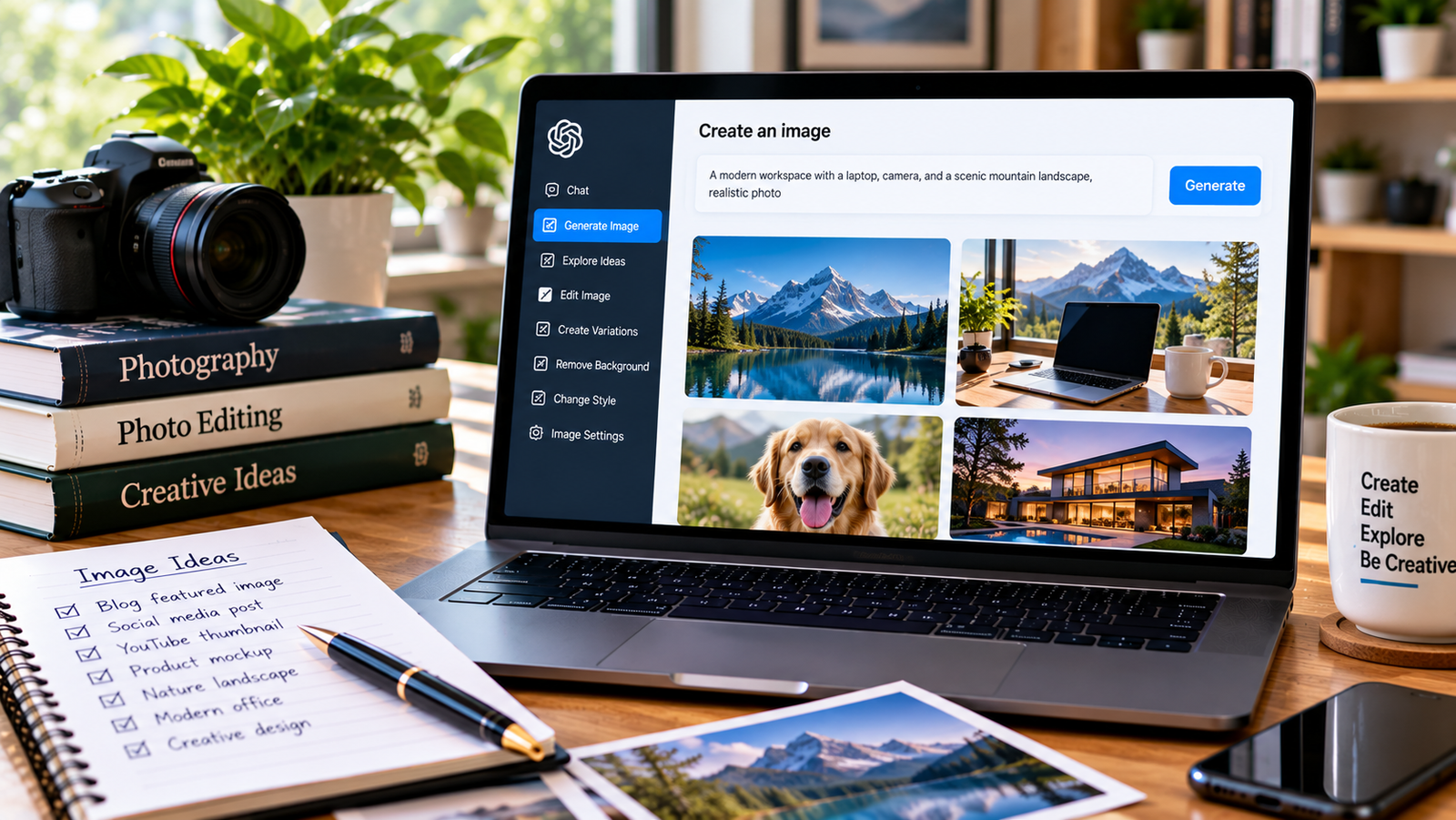
Creating attractive images for a blog, social media post, presentation, or personal project no longer requires advanced graphic design skills. With ChatGPT, you can describe the image you want and use AI image generation to turn your idea into a visual.
You can create realistic scenes, illustrations, product concepts, backgrounds, and other creative visuals by writing a clear prompt. You can also refine an image by requesting changes to its style, composition, colors, or subject.
In this guide, you will learn how to create images with ChatGPT, write better prompts, edit existing images, and avoid common mistakes.
What Can You Create with ChatGPT?
ChatGPT image generation can help you explore many types of visual content, depending on the features available to your account.
Examples include:
- Blog featured images and article illustrations.
- Social media graphics and creative concepts.
- Realistic scenes and lifestyle images.
- Educational illustrations and diagrams.
- Product mockups and advertising concepts.
- Backgrounds and visual assets for presentations.
- Stylized artwork and imaginative scenes.
AI-generated images can be useful for brainstorming and content creation. However, you should check the final image carefully before using it professionally, especially when it contains text, product details, logos, or factual information.
Method 1: Create an Image from a Text Prompt
The simplest way to begin is to describe the image you want in ordinary language.
Step 1: Open ChatGPT
Open ChatGPT in your browser or app. Look for the image creation option if it is available, or describe your image request directly in the conversation.
The interface and available features may vary by account and platform.
Step 2: Describe Your Image
Explain the subject, setting, visual style, and intended use. A specific description generally gives the image generator more useful direction than a short, vague request.
For example, instead of writing:
“Create an image for my blog.”
Try this:
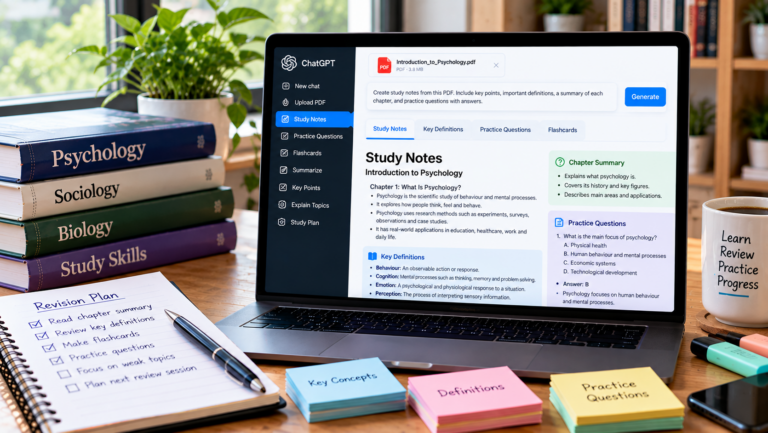
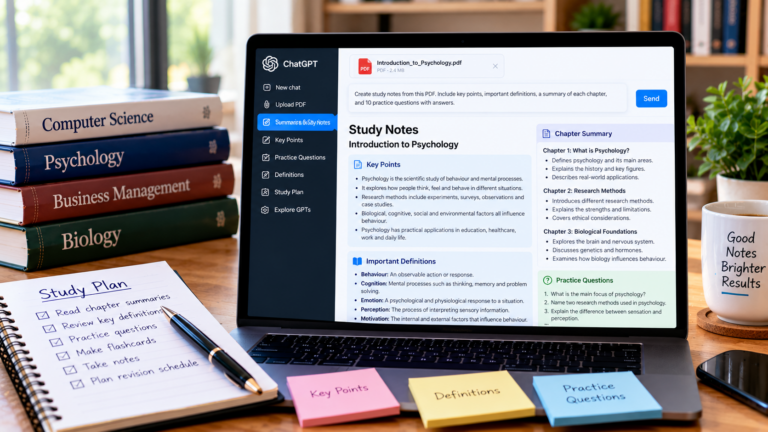
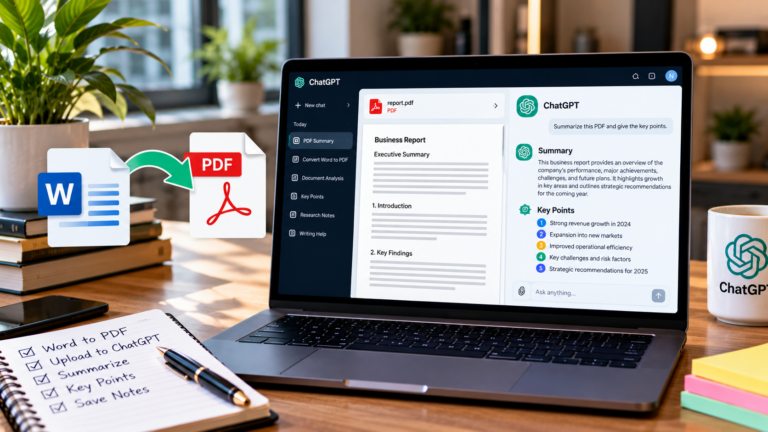
Create a realistic featured image for a technology blog about AI productivity tools. Show a modern laptop on a clean wooden desk with a document summary visible on the screen, natural window lighting, a notebook and coffee mug, and a professional workspace in the background. Use a wide horizontal composition suitable for a blog header.
Step 3: Generate the Image
Submit your prompt and wait for the image to be created. Review the result to see whether it matches your idea.
Look at the main subject, lighting, composition, background, and overall visual quality.
Step 4: Request Improvements
If the first result is not quite right, explain what you want to change.
For example:
Keep the same overall concept, but make the background simpler, move the laptop slightly to the right, use softer natural lighting, and leave some empty space on the left for a headline.
You can request changes without necessarily starting over from scratch.
Step 5: Save the Image
Save the final image and prepare it for your intended use. For a WordPress blog, check its dimensions, file size, and format before uploading it.
How to Write Better ChatGPT Image Prompts
A useful image prompt describes the result you want rather than simply naming a subject.
Try to include these five elements:
1. Subject
Explain what the image should show.
Example: “A laptop displaying an AI writing assistant.”
2. Setting
Describe where the scene takes place.
Example: “On a wooden desk in a bright, modern home office.”
3. Style
Choose the visual appearance.
Examples include realistic photography, flat illustration, watercolor, 3D rendering, or a clean editorial style.
4. Composition
Explain how the elements should be arranged.
Example: “Use a wide horizontal layout, keep the laptop on the right, and leave negative space on the left.”
5. Intended use
Tell ChatGPT where you plan to use the image.
Example: “Create a professional blog featured image for a technology tutorial.”
A complete prompt could look like this:
Create a realistic, wide horizontal image for a professional technology blog. Show a laptop displaying an AI productivity dashboard on a wooden desk in a bright home office. Include a notebook, pen, and small plant. Use natural daylight, a clean background, and a balanced composition with space for a headline. Avoid watermarks and unnecessary decorative text.
You can reuse this structure for different blog topics by changing the subject and setting.
Useful ChatGPT Image Prompts for Different Purposes
Here are examples you can adapt for your own projects.
1. Blog Featured Image
Create a realistic 16:9 featured image for a blog article about [topic]. Show [main subject] in a relevant setting. Use professional lighting, a clean composition, and a visual style suitable for a technology or educational website.
2. Social Media Visual
Create a square social media visual about [topic]. Use a clear focal point, attractive colors, balanced spacing, and a modern professional style. Leave enough room for a short headline that can be added later.
3. Product Mockup
Create a realistic product mockup featuring [product] in a clean studio environment. Use soft lighting, realistic shadows, a simple background, and a composition suitable for an online advertisement.
4. Educational Illustration
Create a clear educational illustration explaining [concept]. Arrange the main elements logically, use a simple visual style, and make the relationships between the elements easy to understand.
For diagrams containing technical labels, review the result carefully and correct any inaccurate text.
5. YouTube Thumbnail Concept
Create a high-contrast, wide thumbnail concept for a YouTube tutorial about [topic]. Use one clear focal subject, a simple background, and strong visual contrast. Leave space for a short headline to be added in a design editor.
6. Realistic Workspace
Create a realistic photograph-style image of a modern workspace with a laptop, notebook, coffee mug, and plant. Use natural daylight, a wooden desk, a softly blurred background, and a clean professional appearance.
How to Edit an Existing Image with ChatGPT
You can also use image editing features to change an image you already have, when those features are available.
Step 1: Upload Your Image
Attach the image you want to edit in ChatGPT.
Step 2: Describe the Changes
Be specific about the elements you want to modify. For example:
Change the background to a bright modern office. Keep the main subject unchanged, preserve the original proportions, and use natural lighting.
You can also request a different visual style, a cleaner background, or changes to selected elements.
Step 3: Review the Edited Result
Check whether the important details remain accurate. Pay attention to object shapes, text, faces, product features, and any elements that should not have changed.
Step 4: Request Further Refinements
If the edit is incomplete, explain what needs correcting. For example, ask for a less cluttered background or more space around the main subject.
For detailed editing, make changes in stages and inspect each result.
Can ChatGPT Create Images for Websites?
Yes. AI-generated images can be useful for blog posts, landing pages, educational content, and website design concepts.
For a WordPress website, keep these practical tips in mind:
- Choose dimensions appropriate for the placement.
- Use a compressed image to reduce loading time.
- Write descriptive file names.
- Add accurate alternative text when the image conveys meaningful information.
- Make sure the image fits your website’s visual style.
- Check that you have the necessary rights to use any uploaded source material.
For blog featured images, a wide 16:9 composition is often a useful starting point. The ideal dimensions depend on your WordPress theme and layout.
AI-generated images do not automatically improve SEO rankings. Their value comes from helping readers understand the content and making the page more useful.
Common Problems When Creating Images with ChatGPT
The Image Does Not Match Your Idea
Your prompt may be too vague or contain conflicting instructions. Specify the subject, setting, composition, and style more clearly.
The Image Contains Incorrect Text
AI-generated text inside images can contain spelling errors or inconsistent lettering. For designs that require precise wording, generate the visual first and add the text afterward in a graphic design editor.
The Image Looks Too Artificial
Request more natural lighting, realistic materials, believable proportions, and a simpler composition. You can also specify realistic photography rather than a stylized illustration.
The Image Has Too Many Details
Ask for fewer background objects and one clear focal point. A simpler composition often works better for blog headers and small thumbnails.
The Image File Is Too Large
Export or convert the image to a suitable format and compress it before uploading it to your website. Check the final dimensions and file size to balance image quality with page speed.
The Image Does Not Fit the Layout
Specify a wide or square composition according to your intended placement. Leave extra space around important subjects when you expect the image to be cropped.
Frequently Asked Questions
Can I create images with ChatGPT for free?
Image generation availability and usage limits depend on your account and the current ChatGPT offering. Check the image creation options available to you.
Can ChatGPT create realistic images?
Yes. It can generate realistic-looking scenes and objects, as well as illustrations and stylized artwork. Results vary depending on the prompt and the image generation system.
Can I use ChatGPT images on my website?
AI-generated images can be used in website content, subject to the applicable service terms and any rights or restrictions associated with the source material. Review images for accuracy and avoid presenting fabricated visuals as genuine photographs of real events.
Can ChatGPT add text to images?
It can generate images containing text, but spelling, exact wording, and layout may not always be reliable. For important headlines, prices, logos, and labels, add or correct the text in a design editor.
What is the best prompt for generating an image?
There is no single best prompt for every situation. A useful prompt describes the subject, setting, style, composition, and intended use. Review the result and refine the prompt when needed.
Final Thoughts
Creating images with ChatGPT is a practical way to turn ideas into visuals without starting from a blank design canvas. You can generate blog images, creative concepts, product mockups, educational illustrations, and social media visuals by describing what you want.
Start with a clear prompt, review the result, and request targeted improvements. Before publishing, check the image for errors, optimize the file size, and make sure it fits the intended layout.
Related reading: Explore more ChatGPT tutorials on TechLabMind.
About the Author