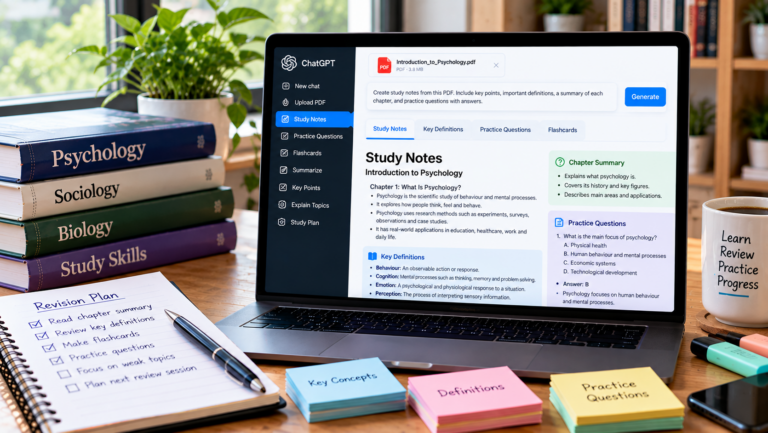
Studying from long PDF files can be difficult, especially when a textbook chapter contains many pages of explanations, definitions, and examples. Writing notes manually takes time, and it can be challenging to decide which information is most important.
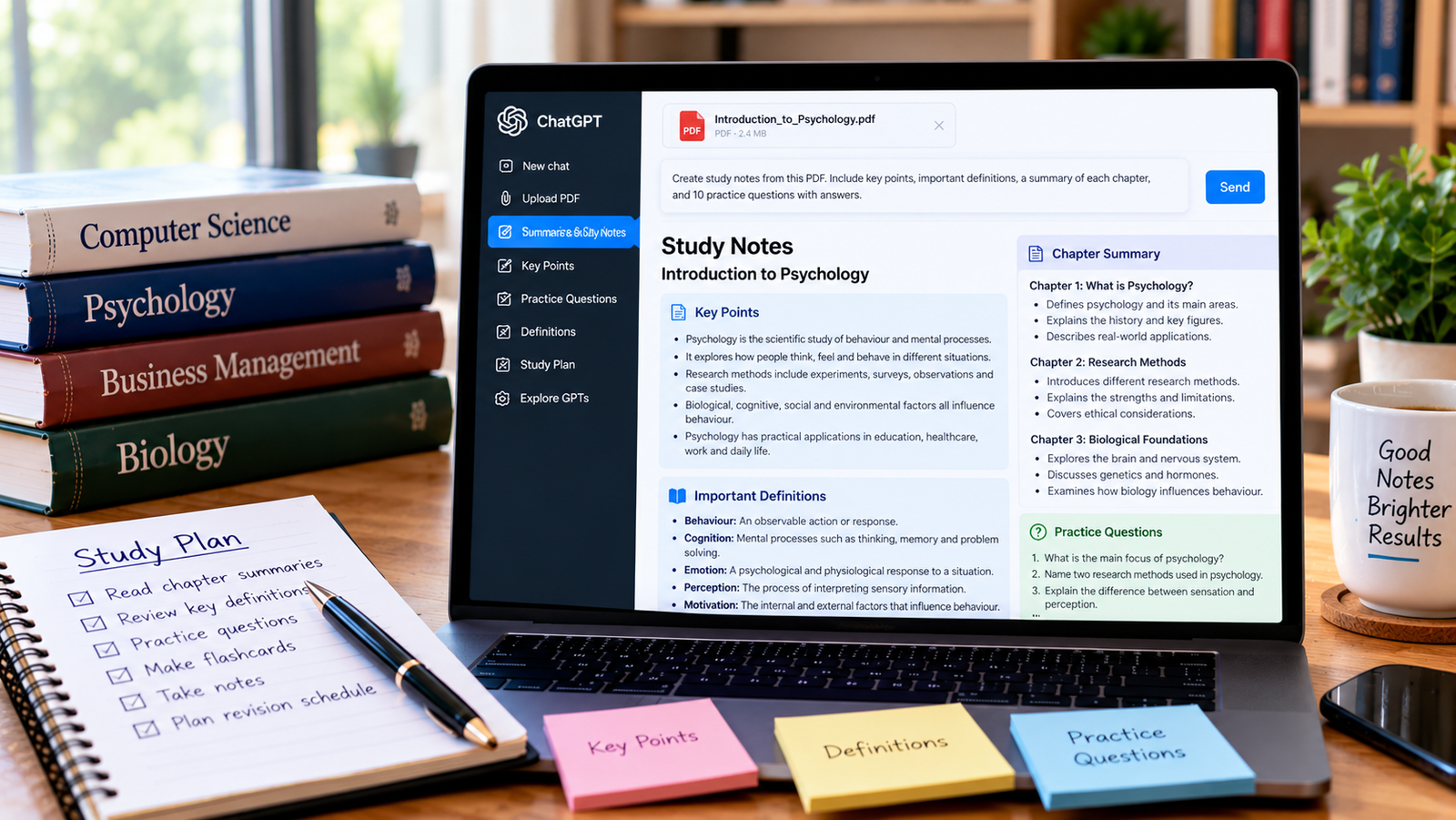
ChatGPT can help you turn a PDF into organized study notes, chapter summaries, key definitions, flashcards, and practice questions. You can then use these materials to review topics and prepare for exams.
In this guide, you will learn how to create study notes from a PDF with ChatGPT, use practical prompts, and check the notes for accuracy.
Why Use ChatGPT to Create Study Notes?
ChatGPT can help organize information from supported PDF uploads into a format that is easier to review.
You can use it to:
- Summarize long chapters in simple language.
- Extract important concepts and definitions.
- Organize notes under headings and subheadings.
- Create revision questions and answers.
- Generate flashcards for memorization.
- Explain difficult topics with examples.
- Identify topics that may need further review.
AI-generated notes should support your learning, not replace the original textbook or your teacher’s instructions. Important facts, formulas, diagrams, and exam requirements should always be checked against the source material.
Step 1: Prepare Your PDF
Find the textbook chapter, lecture notes, or study material you want to review.
Before uploading it, make sure the PDF opens correctly and its text is readable. If it contains scanned pages, you may need optical character recognition (OCR) to make the text searchable.
For a large textbook, start with one chapter or section instead of asking ChatGPT to process everything at once. This makes it easier to create focused notes.
Step 2: Upload the PDF to ChatGPT
- Open ChatGPT in your browser or app.
- Start a new conversation.
- Select the attachment option, if available.
- Choose your PDF file and wait for it to upload.
- Tell ChatGPT what kind of study notes you want.
File upload availability and limits depend on your account and the current service offering.
Step 3: Create Organized Study Notes
Once your PDF is uploaded, use a specific prompt rather than simply asking for a summary.
Try this prompt:
Read the attached PDF and create detailed study notes for a student. Organize the notes using clear headings and subheadings. Include the main ideas, important definitions, key facts, examples, and conclusions. Use simple English, preserve important details, and do not add information that is not supported by the document.
Review the notes to make sure they cover the chapter’s most important topics.
If the notes are too long, ask for a shorter revision version. If they are too brief, request more explanation for the difficult sections.
Step 4: Extract Important Definitions and Key Points
Definitions and key concepts are often essential for exams. You can ask ChatGPT to separate them from the main notes.
Use this prompt:
From the attached PDF, extract the 15 most important concepts and definitions. Present each term in bold, followed by a clear explanation in simple language. Include an example where the document provides one. Do not invent definitions or examples that contradict the source.
You can also ask for a table with three columns:
| Term | Simple definition | Example or context |
|---|---|---|
| Key concept 1 | Definition from the material | Relevant example |
| Key concept 2 | Definition from the material | Relevant example |
This format can make revision faster, especially when a chapter introduces many unfamiliar terms.
Step 5: Create Practice Questions
Reading notes repeatedly is not always enough to help you remember information. Practice questions can help you test what you understand.
Try this prompt:
Create 15 practice questions based on the attached PDF. Include five multiple-choice questions, five short-answer questions, and five explanation questions. Provide an answer key at the end and explain why each answer is correct. Base the questions on the document and do not invent unsupported facts.
Attempt the questions before reading the answers. This helps you identify areas that need more attention.
For exam preparation, compare the questions with your syllabus and past papers when available. AI-generated questions are practice material, not a guarantee of what will appear in an exam.
Step 6: Turn the Notes into Flashcards
Flashcards are useful for remembering definitions, dates, formulas, vocabulary, and short explanations.
Use this prompt:
Turn the key information from these study notes into flashcards. Write one question on the front and a concise answer on the back. Focus on important definitions, concepts, facts, and relationships. Avoid duplicate cards and keep each card focused on one idea.
You can copy the resulting cards into a flashcard application or organize them in a spreadsheet.
For subjects that require problem-solving, include application questions as well as simple recall questions.
Step 7: Ask ChatGPT to Explain Difficult Topics
If a topic is confusing, ask for a simpler explanation rather than rereading the same paragraph repeatedly.
For example:
Explain [topic] from the uploaded PDF as if I am a beginner. Use simple language, break the explanation into steps, and provide a practical example. Then ask me three questions to check my understanding.
You can follow up with questions about specific paragraphs, formulas, or concepts. For complicated material, compare the explanation with the original text to make sure the meaning has not changed.
Step 8: Check the Notes Against the Original PDF
This is one of the most important steps.
AI may omit details, misunderstand a table, or produce an incorrect explanation. Before relying on the notes:
- Check important definitions and formulas.
- Verify dates, figures, names, and examples.
- Compare the summary with the chapter headings.
- Review diagrams and tables directly in the PDF.
- Confirm that the notes cover the topics required by your course.
You can ask ChatGPT to identify which parts of its summary need verification, but you should still check the original document yourself.
For another approach to working with uploaded documents, read our guide on how to ask ChatGPT questions about a PDF.
Best ChatGPT Prompts for Study Notes
Here are additional prompts you can save for future study sessions.
For Quick Revision Notes
Summarize this chapter into concise revision notes. Include the main concepts, essential facts, definitions, and conclusions. Keep the notes organized and remove repetition without removing important information.
For Exam Preparation
Create an exam revision guide from this PDF. Identify the major topics, important definitions, concepts that require memorization, and questions that test understanding. Do not claim that any topic is guaranteed to appear in the exam.
For Difficult Textbooks
Rewrite the most difficult sections of this PDF in clear, beginner-friendly language. Explain technical terms and provide examples where appropriate. Preserve the original meaning.
For Chapter-by-Chapter Notes
Divide this PDF into its main chapters or sections. Summarize each section separately, then provide an overall summary showing how the sections relate to one another.
For Self-Testing
Quiz me on this chapter one question at a time. Wait for my answer before showing the correct answer. Explain any mistakes and use the uploaded PDF as the main source.
This last prompt turns ChatGPT into an interactive study partner rather than just a note generator.
Common Problems and Solutions
ChatGPT Cannot Upload the PDF
Check the file size, your connection, and whether the PDF opens normally. If the file is password-protected or damaged, create an accessible copy if you are authorized to do so.
For more troubleshooting steps, see ChatGPT PDF upload not working.
The Notes Are Too Short
Ask ChatGPT to expand each major heading and include explanations, examples, and important details from the source. For long documents, process one section at a time.
The Notes Contain Errors
Compare the notes with the original PDF. Pay special attention to formulas, statistics, technical terms, and statements that could change the meaning of a topic.
Important Diagrams Are Missing
AI-generated text summaries may not capture every detail from a diagram or chart. Review these visuals separately and create your own labeled notes when necessary.
The PDF Is Scanned
If the pages are images, use OCR when appropriate to make the text searchable. Check the extracted text for errors before relying on it.
Frequently Asked Questions
Can ChatGPT make study notes from a PDF?
Yes. If PDF uploads are supported for your account, you can ask ChatGPT to summarize chapters, extract definitions, create practice questions, and organize revision notes.
Can I use ChatGPT to prepare for exams?
You can use it to review material, explain concepts, and test your knowledge. Check all notes against your syllabus, textbooks, and teacher’s guidance.
Are ChatGPT study notes always accurate?
No. AI can omit information or make mistakes. Verify important details against the original material, especially in technical subjects.
Can ChatGPT create multiple-choice questions from a PDF?
Yes. You can request multiple-choice questions, short-answer questions, or longer explanation questions based on your uploaded material. Review the answer key before using it.
What is the best way to study with AI-generated notes?
Combine concise notes with flashcards, practice questions, and active recall. Try answering questions without looking at your notes, then revisit the topics you find difficult.
Final Thoughts
ChatGPT can help turn a lengthy PDF into organized study notes, definitions, flashcards, and practice questions. The best results come from using clear prompts and working through long documents in manageable sections.
Use AI to make studying more organized, then test yourself and verify important information against the original material. This approach can help you understand topics more clearly and make better use of your revision time.
Related reading: How to summarize a PDF with ChatGPT and how to extract key points from a PDF using AI.
About the Author