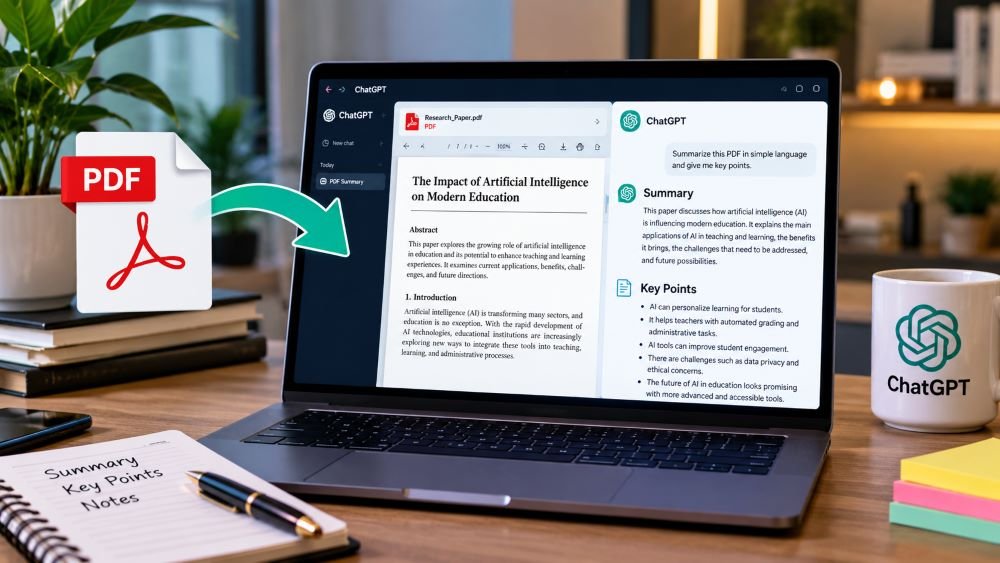
Reading a long PDF can take hours, especially when it contains research findings, reports, manuals, or study material. If you only need the main ideas, reading every page may not be the best use of your time.
ChatGPT can help you turn a PDF into a shorter, easier-to-read summary. You can also ask it to explain difficult sections, pull out important points, create study notes, or answer questions about the document.
In this guide, you’ll learn how to summarize a PDF with ChatGPT, which prompts work well, and what to check before relying on the result.
Can ChatGPT summarize a PDF?
Yes. ChatGPT supports PDF uploads in supported experiences, allowing you to ask questions about a document, summarize its contents, and extract useful information. File availability and usage limits depend on your plan and account settings.
The quality of the result depends on the document and your instructions. A clear PDF with selectable text is usually easier to work with than a scanned document containing handwritten notes or complicated charts.
How to summarize a PDF with ChatGPT
Follow these steps to get started.
Step 1: Open ChatGPT
Visit ChatGPT and sign in to your account.
Open a new conversation. Check that file uploads are available in your current interface.
Step 2: Upload your PDF file
Click the plus (+) button or the file attachment option in the message area. Select the PDF from your computer and wait for it to finish uploading.
Choose a document you want to understand, such as a research paper, course notes, a business report, or a user manual.
If the file is very large or the upload fails, check the current file limits and try a smaller document if necessary.
Step 3: Tell ChatGPT what kind of summary you need
Once the file is attached, write a clear instruction. Simply saying “Summarize this PDF” can work, but a more specific request usually produces a more useful result.
For example, you could ask for a short overview, a chapter-by-chapter summary, or a list of the main findings.
Try this prompt:
Summarize the attached PDF in plain English. Keep the summary under 500 words. Include the main argument, the most important findings, key facts, and the conclusion. Use headings and bullet points. Do not add information that is not supported by the document.
ChatGPT will use the uploaded document to prepare a response. Read the result and decide whether you need more detail.
Step 4: Ask follow-up questions
You don’t have to stop after receiving the first summary. Follow-up questions can help you understand specific sections without starting over.
For example, you can ask:
- Which three points are most important in this document?
- Explain the second chapter in simple language.
- What evidence does the author use to support the main argument?
- What conclusions does the report reach?
- Are there any limitations or unanswered questions?
- Which pages should I read for more detail about this topic?
For academic work, ask for page references where possible and check them against the original PDF.
Step 5: Turn the summary into useful notes
If you’re studying for an exam or preparing a presentation, ask ChatGPT to organize the information for that purpose.
For example:
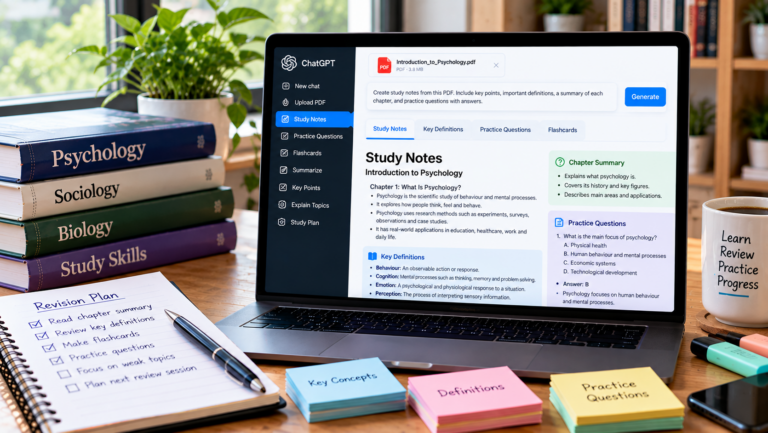
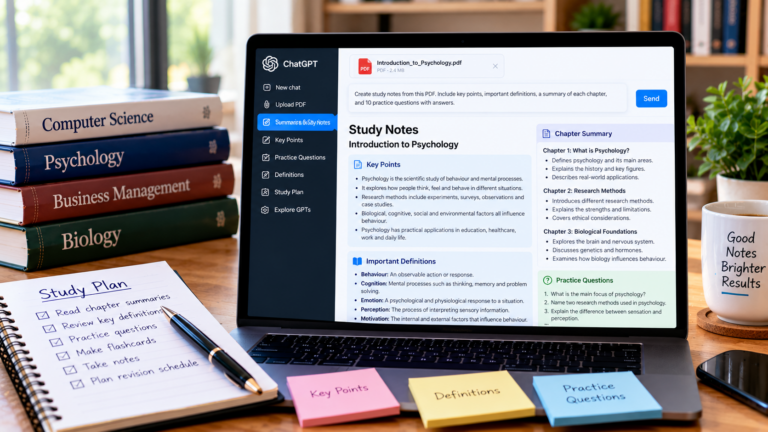
Turn this PDF into study notes. Organize the content by topic, define important terms, list the main facts, and create 10 practice questions with answers. Keep the information accurate to the source.
You can also request a table, a chapter outline, a glossary, or a short revision sheet.
The best format depends on what you plan to do with the document after summarizing it.
Best ChatGPT prompts for summarizing a PDF
Different documents need different approaches. These prompts can help you get a result that fits your task.
1. For a short summary
Summarize this PDF in 200 words. Explain the main idea, the key points, and the conclusion in plain English.
Use this when you need a quick overview before deciding whether to read the full document.
2. For a research paper
Summarize this research paper under these headings: research objective, methodology, main findings, limitations, and conclusion. Keep the authors’ claims separate from your interpretation, and identify any information that is not stated clearly in the paper.
This structure is useful when reviewing academic literature or comparing several studies.
3. For students and exam preparation
Create revision notes from this PDF. Use clear headings, short explanations, important definitions, and practice questions. Do not omit important facts or change the meaning of the original material.
Review the notes against your course material, particularly if your exam requires exact terminology.
4. For a business report
Summarize this report for a manager. Highlight the main results, important figures, risks, decisions, and recommended next steps. Keep numerical details accurate and mention the relevant page or section when possible.
Always verify financial figures, dates, and percentages before sharing the summary.
5. For a long or technical document
Start with an overview of the document. Then summarize each major section separately. Identify technical terms that need explanation, and tell me which sections contain the most important information.
For very long documents, work section by section if the response misses important details.
How to get a more accurate PDF summary
A shorter response isn’t automatically a better one. The goal is to preserve the information that matters while removing unnecessary detail.
Here are a few practical ways to improve the result.
Tell ChatGPT who the summary is for. A beginner may need definitions and examples, while an experienced reader may prefer technical details.
Set a useful length. Ask for 200 words if you need a quick overview, or request a section-by-section explanation if the document is complex.
Ask it to preserve important details. Tell ChatGPT to retain dates, figures, names, findings, and limitations rather than replacing them with broad statements.
Request references to the original document. Page numbers and section names make it easier to verify important claims.
Check the source yourself. AI summaries can omit qualifications, misread tables, or present a conclusion without enough context. Never assume that every detail is correct simply because the summary sounds confident.
Can ChatGPT summarize a scanned PDF?
It depends on the file and the capabilities available in your ChatGPT experience.
A PDF containing selectable text is generally straightforward to process. A scanned PDF may consist mainly of page images, so text extraction or image understanding may be needed.
If ChatGPT struggles to read the file, try these steps:
- Check whether you can select and copy text from the PDF.
- If it is a scan, use a reputable OCR tool to convert the pages into searchable text.
- Upload the searchable version and ask for the summary again.
- If a chart or diagram is important, provide a clear image of that page and ask ChatGPT to explain it.
- Compare any extracted figures or technical details with the original.
OCR can introduce errors, especially in tables, formulas, and low-quality scans, so check the converted text before using it.
What if ChatGPT cannot upload or read the PDF?
If your PDF won’t upload or the response misses important information, try the following:
- Check your internet connection and the current upload limits.
- Confirm that the file opens correctly on your computer.
- Try a smaller copy of the PDF.
- Convert scanned pages to searchable text using OCR.
- Upload only the relevant section if the entire document is unnecessary.
- Ask specific questions instead of requesting a summary of everything at once.
You can also consult the official OpenAI file upload guide for current supported formats and troubleshooting information.
Is ChatGPT free for summarizing PDFs?
PDF summarization may be available on the ChatGPT Free plan, but file uploads and usage are subject to plan-specific limits and account settings. Paid plans may offer different limits and capabilities.
Check the options available in your account before choosing a plan solely for PDF summarization.
Frequently asked questions
Can ChatGPT summarize a 100-page PDF?
It may be able to summarize a 100-page PDF, depending on the file, its contents, and the limits of your account. For a complex document, summarizing individual chapters and then combining the results can make it easier to check that important details haven’t been missed.
Can ChatGPT summarize multiple PDFs at once?
ChatGPT supports file uploads, and you can ask it to compare or summarize documents when the relevant features and limits allow. For better results, specify whether you want an individual summary of each file or a comparison across all the documents.
Can ChatGPT summarize a PDF without changing its meaning?
It can attempt to preserve the original meaning, but it cannot guarantee a perfect summary. Ask it to retain the author’s main claims, evidence, qualifications, and conclusions, then verify important statements against the source.
Can I use ChatGPT to summarize a PDF for studying?
Yes. You can ask it to create revision notes, explain difficult concepts, define terms, and generate practice questions. Use the original textbook or course material to check facts and make sure the notes cover what your course requires.
Is ChatGPT better than reading a PDF yourself?
It depends on your goal. ChatGPT can save time when you need an overview or help understanding a difficult section. Reading the original is still important when you need full context, precise wording, detailed evidence, or a complete understanding of the material.
Final thoughts
ChatGPT is a practical way to summarize PDFs when you need the main points without reading every page immediately. Upload the document, explain the type of summary you want, and ask follow-up questions when something needs clarification.
For the best results, give clear instructions and check important details against the original file. A good summary should make the document easier to understand without leaving out the information you need.
Related reading: Explore more ChatGPT tutorials on TechLabMind to learn how to work with documents, organize research, and use AI tools for everyday tasks.
Sources
- OpenAI Help Center: Uploading files and audio to ChatGPT
- OpenAI: Use ChatGPT with PDFs
- Google Search Central: Creating helpful, reliable, people-first content
How to Summarize a PDF with ChatGPT (Step-by-Step)
Reading a long PDF can take hours, especially when it contains research findings, reports, manuals, or study material. If you only need the main ideas, reading every page may not be the best use of your time.
ChatGPT can help you turn a PDF into a shorter, easier-to-read summary. You can also ask it to explain difficult sections, pull out important points, create study notes, or answer questions about the document.
In this guide, you’ll learn how to summarize a PDF with ChatGPT, which prompts work well, and what to check before relying on the result.
Can ChatGPT summarize a PDF?
Yes. ChatGPT supports PDF uploads in supported experiences, allowing you to ask questions about a document, summarize its contents, and extract useful information. File availability and usage limits depend on your plan and account settings.
The quality of the result depends on the document and your instructions. A clear PDF with selectable text is usually easier to work with than a scanned document containing handwritten notes or complicated charts.
How to summarize a PDF with ChatGPT
Follow these steps to get started.
Step 1: Open ChatGPT
Visit ChatGPT and sign in to your account.
Open a new conversation. Check that file uploads are available in your current interface.
Step 2: Upload your PDF file
Click the plus (+) button or the file attachment option in the message area. Select the PDF from your computer and wait for it to finish uploading.
Choose a document you want to understand, such as a research paper, course notes, a business report, or a user manual.
If the file is very large or the upload fails, check the current file limits and try a smaller document if necessary.
Step 3: Tell ChatGPT what kind of summary you need
Once the file is attached, write a clear instruction. Simply saying “Summarize this PDF” can work, but a more specific request usually produces a more useful result.
For example, you could ask for a short overview, a chapter-by-chapter summary, or a list of the main findings.
Try this prompt:
Summarize the attached PDF in plain English. Keep the summary under 500 words. Include the main argument, the most important findings, key facts, and the conclusion. Use headings and bullet points. Do not add information that is not supported by the document.
ChatGPT will use the uploaded document to prepare a response. Read the result and decide whether you need more detail.
Step 4: Ask follow-up questions
You don’t have to stop after receiving the first summary. Follow-up questions can help you understand specific sections without starting over.
For example, you can ask:
- Which three points are most important in this document?
- Explain the second chapter in simple language.
- What evidence does the author use to support the main argument?
- What conclusions does the report reach?
- Are there any limitations or unanswered questions?
- Which pages should I read for more detail about this topic?
For academic work, ask for page references where possible and check them against the original PDF.
Step 5: Turn the summary into useful notes
If you’re studying for an exam or preparing a presentation, ask ChatGPT to organize the information for that purpose.
For example:
Turn this PDF into study notes. Organize the content by topic, define important terms, list the main facts, and create 10 practice questions with answers. Keep the information accurate to the source.
You can also request a table, a chapter outline, a glossary, or a short revision sheet.
The best format depends on what you plan to do with the document after summarizing it.
Best ChatGPT prompts for summarizing a PDF
Different documents need different approaches. These prompts can help you get a result that fits your task.
1. For a short summary
Summarize this PDF in 200 words. Explain the main idea, the key points, and the conclusion in plain English.
Use this when you need a quick overview before deciding whether to read the full document.
2. For a research paper
Summarize this research paper under these headings: research objective, methodology, main findings, limitations, and conclusion. Keep the authors’ claims separate from your interpretation, and identify any information that is not stated clearly in the paper.
This structure is useful when reviewing academic literature or comparing several studies.
3. For students and exam preparation
Create revision notes from this PDF. Use clear headings, short explanations, important definitions, and practice questions. Do not omit important facts or change the meaning of the original material.
Review the notes against your course material, particularly if your exam requires exact terminology.
4. For a business report
Summarize this report for a manager. Highlight the main results, important figures, risks, decisions, and recommended next steps. Keep numerical details accurate and mention the relevant page or section when possible.
Always verify financial figures, dates, and percentages before sharing the summary.
5. For a long or technical document
Start with an overview of the document. Then summarize each major section separately. Identify technical terms that need explanation, and tell me which sections contain the most important information.
For very long documents, work section by section if the response misses important details.
How to get a more accurate PDF summary
A shorter response isn’t automatically a better one. The goal is to preserve the information that matters while removing unnecessary detail.
Here are a few practical ways to improve the result.
Tell ChatGPT who the summary is for. A beginner may need definitions and examples, while an experienced reader may prefer technical details.
Set a useful length. Ask for 200 words if you need a quick overview, or request a section-by-section explanation if the document is complex.
Ask it to preserve important details. Tell ChatGPT to retain dates, figures, names, findings, and limitations rather than replacing them with broad statements.
Request references to the original document. Page numbers and section names make it easier to verify important claims.
Check the source yourself. AI summaries can omit qualifications, misread tables, or present a conclusion without enough context. Never assume that every detail is correct simply because the summary sounds confident.
Can ChatGPT summarize a scanned PDF?
It depends on the file and the capabilities available in your ChatGPT experience.
A PDF containing selectable text is generally straightforward to process. A scanned PDF may consist mainly of page images, so text extraction or image understanding may be needed.
If ChatGPT struggles to read the file, try these steps:
- Check whether you can select and copy text from the PDF.
- If it is a scan, use a reputable OCR tool to convert the pages into searchable text.
- Upload the searchable version and ask for the summary again.
- If a chart or diagram is important, provide a clear image of that page and ask ChatGPT to explain it.
- Compare any extracted figures or technical details with the original.
OCR can introduce errors, especially in tables, formulas, and low-quality scans, so check the converted text before using it.
What if ChatGPT cannot upload or read the PDF?
If your PDF won’t upload or the response misses important information, try the following:
- Check your internet connection and the current upload limits.
- Confirm that the file opens correctly on your computer.
- Try a smaller copy of the PDF.
- Convert scanned pages to searchable text using OCR.
- Upload only the relevant section if the entire document is unnecessary.
- Ask specific questions instead of requesting a summary of everything at once.
You can also consult the official OpenAI file upload guide for current supported formats and troubleshooting information.
Is ChatGPT free for summarizing PDFs?
PDF summarization may be available on the ChatGPT Free plan, but file uploads and usage are subject to plan-specific limits and account settings. Paid plans may offer different limits and capabilities.
Check the options available in your account before choosing a plan solely for PDF summarization.
Frequently asked questions
Can ChatGPT summarize a 100-page PDF?
It may be able to summarize a 100-page PDF, depending on the file, its contents, and the limits of your account. For a complex document, summarizing individual chapters and then combining the results can make it easier to check that important details haven’t been missed.
Can ChatGPT summarize multiple PDFs at once?
ChatGPT supports file uploads, and you can ask it to compare or summarize documents when the relevant features and limits allow. For better results, specify whether you want an individual summary of each file or a comparison across all the documents.
Can ChatGPT summarize a PDF without changing its meaning?
It can attempt to preserve the original meaning, but it cannot guarantee a perfect summary. Ask it to retain the author’s main claims, evidence, qualifications, and conclusions, then verify important statements against the source.
Can I use ChatGPT to summarize a PDF for studying?
Yes. You can ask it to create revision notes, explain difficult concepts, define terms, and generate practice questions. Use the original textbook or course material to check facts and make sure the notes cover what your course requires.
Is ChatGPT better than reading a PDF yourself?
It depends on your goal. ChatGPT can save time when you need an overview or help understanding a difficult section. Reading the original is still important when you need full context, precise wording, detailed evidence, or a complete understanding of the material.
Final thoughts
ChatGPT is a practical way to summarize PDFs when you need the main points without reading every page immediately. Upload the document, explain the type of summary you want, and ask follow-up questions when something needs clarification.
For the best results, give clear instructions and check important details against the original file. A good summary should make the document easier to understand without leaving out the information you need.
Related reading: Explore more ChatGPT tutorials on TechLabMind to learn how to work with documents, organize research, and use AI tools for everyday tasks.
Sources
- OpenAI Help Center: Uploading files and audio to ChatGPT
- OpenAI: Use ChatGPT with PDFs
- Google Search Central: Creating helpful, reliable, people-first content
About the Author