Word documents are useful for editing reports, assignments, business proposals, and study notes. However, PDF files are often easier to share and preserve in a consistent layout. Once your document is converted to PDF, you can also use an AI tool such as ChatGPT to summarize its contents and identify important information.
In this guide, you will learn how to convert a Word document to PDF, upload it to ChatGPT, extract the main points, and turn a lengthy document into clear notes.
Why Convert a Word Document to PDF?
Converting a Word document to PDF offers several benefits:
- Consistent formatting: The document is more likely to look the same on different devices.
- Easy sharing: PDFs are commonly used for reports, assignments, forms, and business documents.
- Convenient review: You can upload a supported PDF to an AI tool and ask questions about its contents.
- Simpler document management: PDFs are useful for storing final versions of documents.
Remember that converting a file to PDF does not automatically improve its content. Check the document for formatting errors before sharing or uploading it.
Method 1: Convert Word to PDF Using Microsoft Word
If you have Microsoft Word installed, you can usually convert your document directly.
Step 1: Open Your Word Document
Open Microsoft Word and select the document you want to convert. Review the text, headings, images, tables, page numbers, and spacing.
Step 2: Open the Export or Save As Option
Select File from the menu. Depending on your Word version, choose Save As or Export.
Step 3: Select PDF
Choose PDF as the file format. Select a folder where you want to save the new file and enter a clear file name.
Step 4: Save the PDF
Click Save or Publish, depending on the version. Open the resulting PDF and check that the pages and formatting appear correctly.
You now have a PDF that you can share or prepare for AI-assisted review.
Method 2: Convert Word to PDF Without Microsoft Word
If Microsoft Word is not available, you can use another document editor that supports PDF export.
Using Google Docs
- Upload your Word file to Google Drive.
- Open it with Google Docs.
- Review the formatting and make any necessary corrections.
- Open the File menu.
- Select Download, then choose PDF Document (.pdf).
- Open the downloaded file to confirm that it looks correct.
Menu labels can vary slightly depending on the application and its current version.
You can also use another trusted document editor with a built-in PDF export option. Be cautious when uploading private documents to unfamiliar online conversion websites.
How to Summarize the PDF with ChatGPT
After converting your document, you can use ChatGPT to identify the most important information.
Step 1: Open ChatGPT
Open ChatGPT in your browser or app and start a new conversation.
Step 2: Upload the PDF
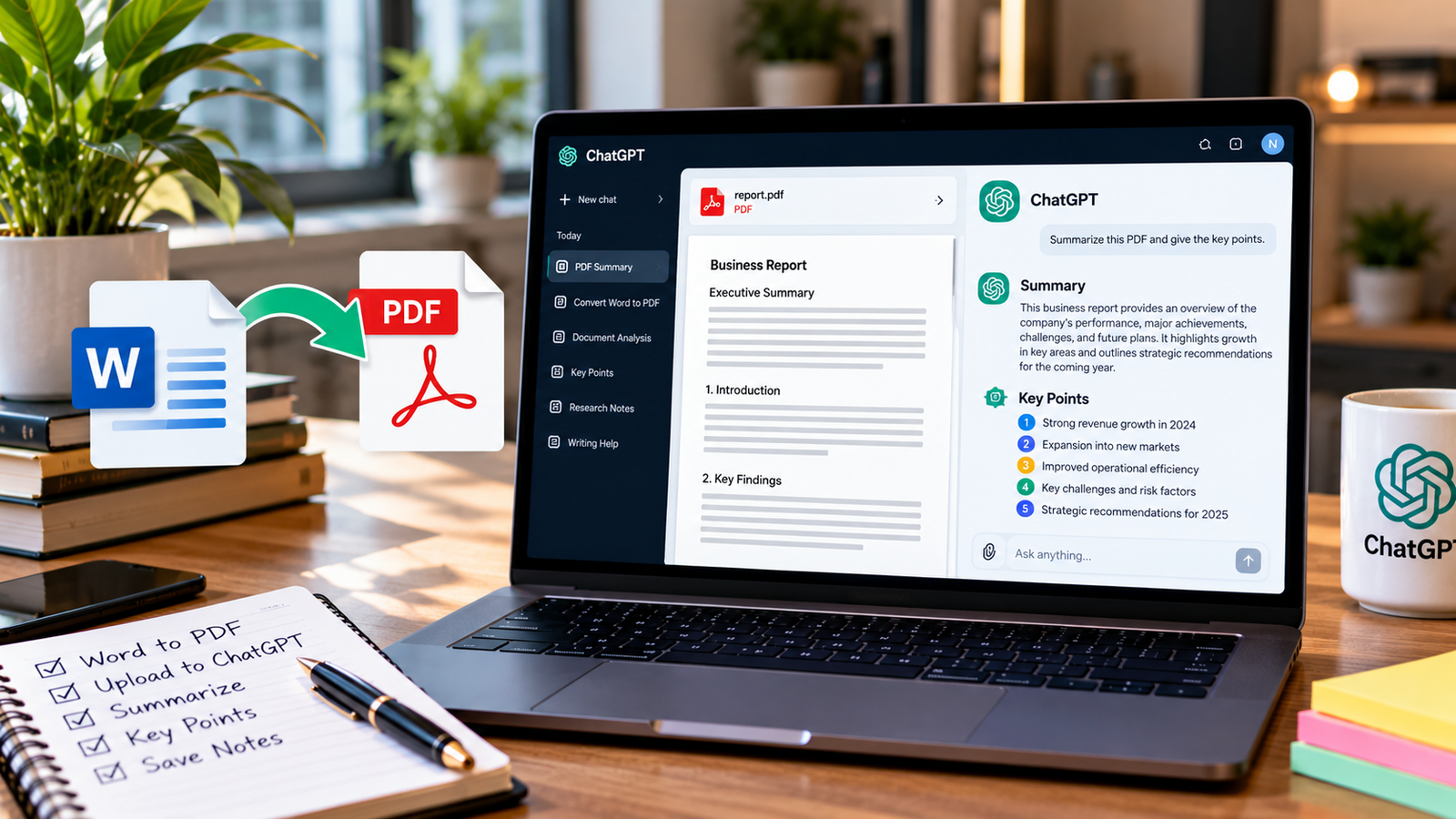
Use the attachment option to select your newly created PDF. Wait for the upload to finish before submitting your prompt.
File upload availability and limits depend on the tool and account you use. If the document contains confidential information, check the relevant privacy requirements before uploading it.
Step 3: Request a Clear Summary
Use this prompt:
Read the attached PDF and summarize it in simple, clear English. Identify the main purpose, the five most important points, key facts, and the final conclusion. Use headings and bullet points. Do not add information that is not supported by the document.
ChatGPT can use the document to prepare a first draft of your summary. Review the response to make sure it includes the information you actually need.
Step 4: Extract Specific Information
You can ask follow-up questions to make the summary more useful.
For example:
Extract the important dates, names, figures, and recommendations from this PDF. Organize them into a table and include page references when you can verify them.
You can also ask for definitions, study notes, an executive summary, or a list of action items.
For more examples, read our guide on how to summarize a PDF with ChatGPT.
Best ChatGPT Prompts for Word Documents Converted to PDF
The following prompts are useful for different types of documents.
1. For Students and Assignments
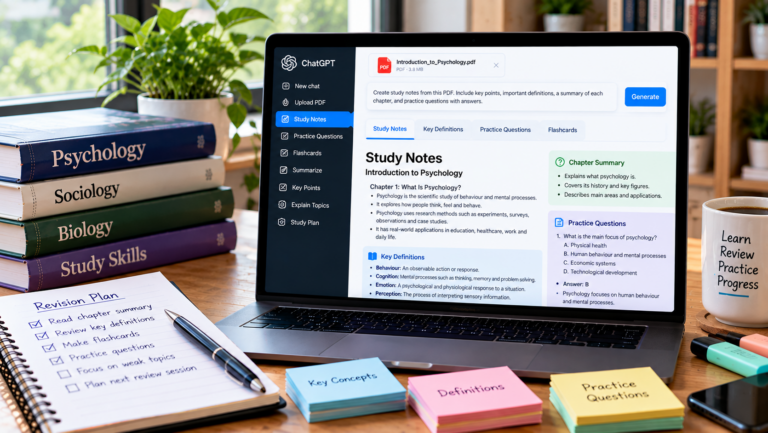
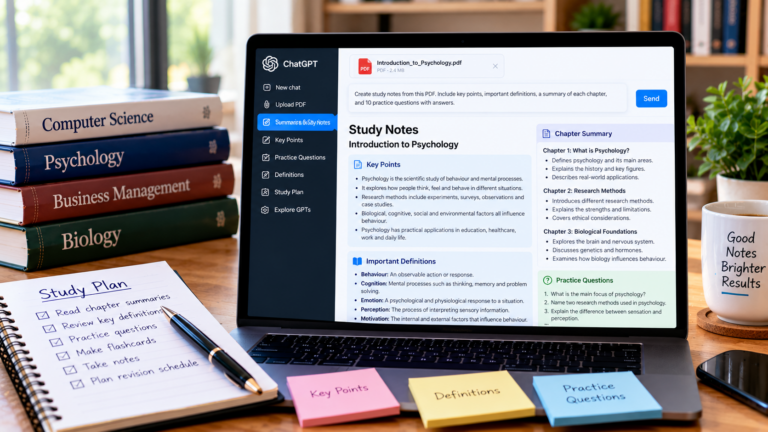
Turn this PDF into study notes. Explain the main concepts in simple language, define important terms, and create 10 revision questions with answers based only on the document.
2. For Business Reports
Summarize this business report for a manager. Include the main results, important figures, risks, challenges, and recommended next steps. Clearly distinguish information stated in the report from any interpretation.
3. For Long Documents
Identify the major sections of this PDF and summarize each section separately. After that, provide an overall summary and list the five most important conclusions.
4. For Finding Specific Information
Search the document for information about [insert topic]. Explain what the document says, identify the relevant section, and provide a page reference if it can be verified.
5. For Creating a Short Executive Summary
Write a concise executive summary of this document for someone who has not read it. Include its purpose, key findings, and conclusion. Keep the language professional and do not introduce unsupported claims.
Common Problems and Solutions
ChatGPT Cannot Upload the PDF
Check whether the file is within the tool’s upload limits. Confirm that the PDF opens correctly and is not password protected. If necessary, create a new PDF from the original Word document and try again.
See our troubleshooting guide: ChatGPT PDF upload not working.
The PDF Formatting Looks Different
Some fonts, tables, images, or page layouts may change during conversion. Open the PDF before uploading it and compare it with the original Word document. Correct any layout problems first.
ChatGPT Gives an Incomplete Summary
A broad prompt may not capture every important detail. Ask for specific information, such as key findings, limitations, dates, or recommendations. For a lengthy document, process individual sections before requesting an overall summary.
The PDF Contains Scanned Pages
A scanned PDF may contain page images instead of searchable text. If the AI tool cannot read the content correctly, use optical character recognition (OCR) to convert the scanned text into searchable text. Review the result carefully because OCR can misread characters and numbers.
The Summary Contains Errors
AI-generated summaries can omit details or misinterpret information. Compare important statements with the original PDF, especially numerical data, quotations, deadlines, and conclusions.
Is It Better to Upload a Word File or a PDF to ChatGPT?
The best format depends on your document and the tools available to you.
A Word file is convenient when you still need to edit the document. A PDF is useful when you want to review a final version with stable page formatting. If ChatGPT supports your Word file, you may not need to convert it first.
If you need page-specific references, remember that the printed page number and the PDF viewer’s page number may differ. Verify references against the original file.
Final Thoughts
Converting Word to PDF and summarizing it with ChatGPT is a practical way to review reports, assignments, and lengthy documents. You can use Microsoft Word or Google Docs to create the PDF, then upload the file to ChatGPT and request a structured summary.
For reliable results, use specific prompts, review the converted document, and verify important information against the original source. AI can save time during document review, but your final check remains essential.
Related tutorials: Summarize a PDF with ChatGPT and ask ChatGPT questions about a PDF.
About the Author