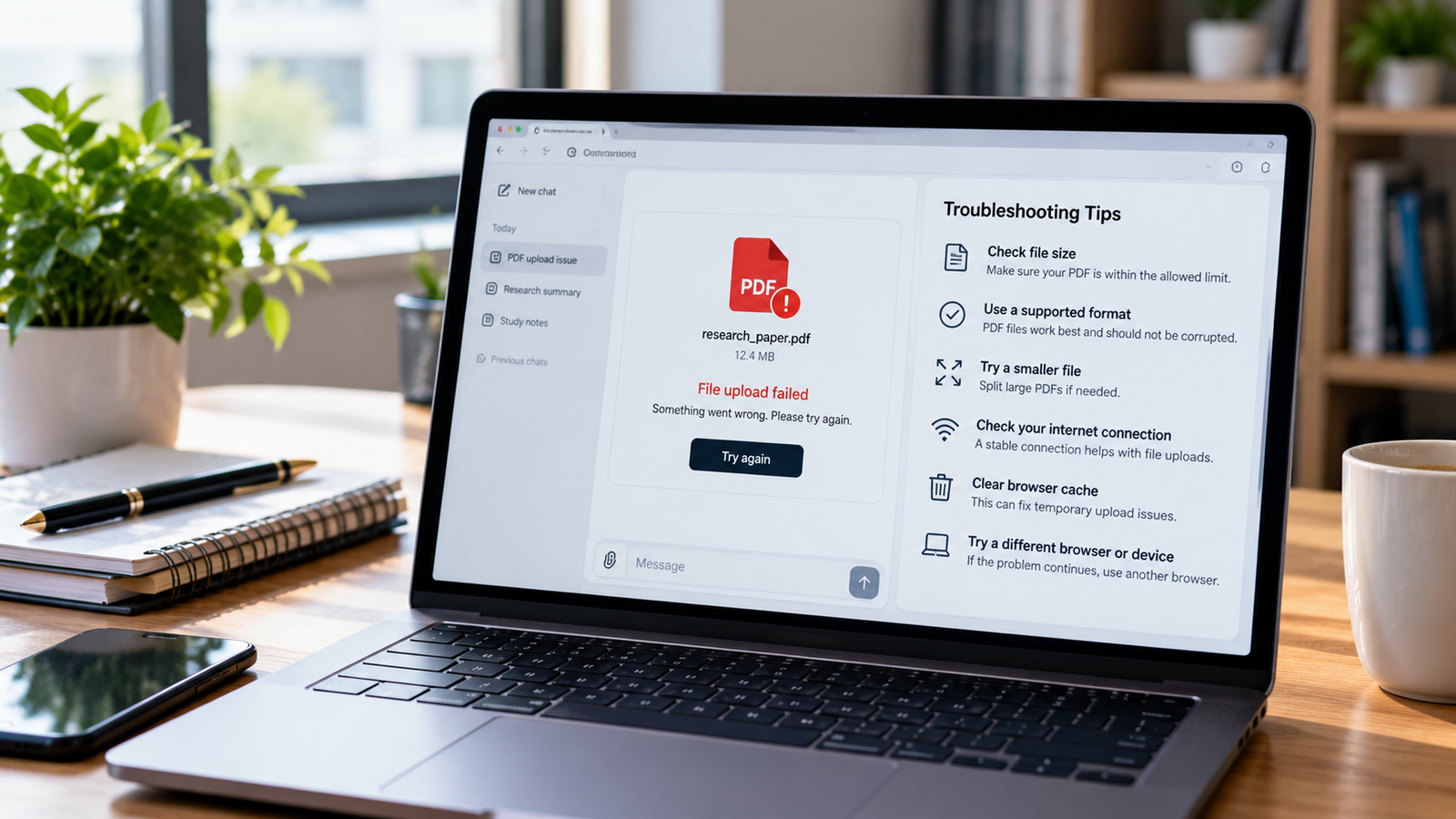
Trying to upload a PDF to ChatGPT, but nothing happens? Maybe the upload gets stuck, an error appears, or ChatGPT accepts the file but cannot answer questions about it.
These problems can have several causes, including temporary service issues, upload limits, browser problems, or a PDF that cannot be processed properly. The good news is that you can check a few things before spending time trying different tools.
Here are eight practical ways to troubleshoot ChatGPT PDF upload problems.
Why is ChatGPT not uploading my PDF?
ChatGPT supports PDF uploads, but access and usage limits can vary by plan and account settings. A failed upload may be related to your file, your browser, your available upload allowance, or a temporary service problem.
Start by identifying what happens when you attach the file. Does the upload fail immediately, remain stuck, display a limit warning, or finish without allowing you to ask questions? The error can help you choose the right fix.
1. Check whether ChatGPT is experiencing an outage
Sometimes the problem is not your PDF or computer. A temporary issue with ChatGPT can affect file uploads or document processing.
Visit the OpenAI Status page and look for an incident involving ChatGPT or file uploads.
If an active issue is reported, wait for the service to recover before repeatedly uploading the same document. If the status page shows normal operation, continue with the checks below.
2. Check your file size and upload limits
ChatGPT has file upload limits, and the available usage allowance depends on your account and plan. OpenAI’s published file upload guidance lists a maximum of 512 MB per file for documents and presentations, along with additional limits for document processing and upload frequency.
However, a file being below the maximum size does not guarantee that every upload will succeed. Account limits, storage restrictions, and temporary usage caps can also matter.
Try these steps:
- Check the PDF’s size on your computer.
- Confirm that you are signed in to the correct ChatGPT account.
- If you receive an upload limit warning, read the message for any retry time.
- If the document is unnecessarily large, create a smaller copy and try again.
- If you upload files frequently, check your account’s available options and limits.
For the latest details, read the official ChatGPT file upload guide.
3. Make sure the PDF is not damaged
A PDF may open in one application but still contain problems that interfere with processing.
Open the document in a PDF reader on your computer. Check that its pages display correctly and that you can scroll through the entire file.
If it appears damaged, try downloading it again from the original source. You can also open it in a trusted PDF reader and save a fresh copy, if that option is available.
Then return to ChatGPT and upload the new file.
Avoid uploading password-protected documents unless you have a supported way to provide an accessible version. If the document contains confidential information, make sure you are allowed to upload it to an online service.
4. Check whether the PDF contains selectable text
Some PDFs are simply scanned images of printed pages. Others contain text that you can select with your mouse.
Open the PDF and try selecting a sentence. If you cannot select any text, the document may be a scan or image-based PDF.
This can make certain tasks harder, particularly when the scan is blurry or contains handwriting.
Here is what you can do:
- Use a reputable OCR tool to make the document searchable.
- Check the converted text for mistakes.
- Save the searchable version as a PDF.
- Upload that version to ChatGPT.
OCR stands for optical character recognition. It converts text in an image into text that software can read and process.
If your PDF contains important charts or diagrams, check those separately. Text extraction may not preserve every detail in a visual element.
5. Try a different browser or a private window
Browser extensions, cached data, and temporary browser problems can sometimes interfere with file uploads.
If the upload button does not respond or the process keeps failing, try opening ChatGPT in a private or incognito window.
You can also:
- Refresh the ChatGPT page.
- Sign out and sign back in.
- Temporarily disable extensions that may interfere with the page.
- Try another supported browser.
- Test a different network if the problem continues.
If you use a VPN or proxy, check whether it is affecting your connection. You can temporarily test without it if doing so is safe and appropriate for your network.
If the same problem occurs across browsers and networks, the cause may be related to your account, the service, or the file itself.
6. Check your ChatGPT storage and upload allowance
You may see an upload limit warning even when you have not uploaded many files recently.
OpenAI distinguishes between upload frequency limits and shared storage limits. These are separate restrictions, so resolving one does not necessarily resolve the other.
If you see an upload limit message:
- Confirm that you are using the intended account.
- Follow any retry time shown in the error message.
- Open ChatGPT settings and check the Storage section if it is available.
- Check the current upload guidance for your plan.
- If the error continues, follow the official support instructions.
Do not assume that deleting a conversation will automatically resolve every upload limit. Storage and upload allowances can work differently.
7. Try uploading a smaller PDF
If the original file is very large, contains many scanned pages, or includes complicated layouts, test with a smaller copy.
You can split the PDF into sections using a trusted PDF tool, then upload the relevant pages separately.
For example, if you need to understand a 200-page report, start with the introduction, methods, and results sections instead of uploading the entire report again.
Once the smaller file uploads successfully, ask ChatGPT to work with that section.
This approach can also make the results easier to review because you can focus on one part of the document at a time.
8. Contact OpenAI Support if nothing works
If the upload continues to fail after these checks, contact OpenAI Support through the official Help Center.
Provide useful details so the problem can be investigated:
- The exact error message.
- Whether the failure happens during upload or after processing begins.
- The file type and approximate size.
- The browser or app you are using.
- The date and time of the problem, including your time zone.
- A screenshot of the error, if it does not expose private information.
If available, include the request ID mentioned in the support guidance. Do not share your password or other sensitive account credentials.
You can also check the OpenAI Help Center for updated troubleshooting steps.
What if ChatGPT uploads the PDF but cannot read it?
An upload that finishes successfully does not always mean every part of the document can be interpreted correctly.
If ChatGPT says it cannot find information in the file, try asking a more specific question and identify the page or section you want it to examine.
You can also try the following:
- Confirm that the PDF contains the information you are asking about.
- Upload a smaller section if the document is long.
- Use OCR if the pages are scanned images.
- Upload an important chart or diagram separately when necessary.
- Ask ChatGPT to identify the relevant page or passage so you can verify its answer.
For help with the next step, read our guide on how to summarize a PDF with ChatGPT.
Frequently asked questions
Why is my PDF not uploading to ChatGPT?
Possible causes include a temporary service problem, an upload limit, a browser issue, or a damaged file. Check the OpenAI Status page first, then review your account limits and test the PDF in another browser.
What is the maximum PDF size for ChatGPT?
OpenAI’s published guidance lists a maximum of 512 MB per document or presentation file. Other processing and account limits also apply, so check the current official guidance for your plan.
Why does ChatGPT say I have reached my upload limit?
You may have reached an upload frequency limit or a shared storage limit. Check the warning message, confirm your account, and review the Storage section in settings if available. Follow any retry time provided.
Can ChatGPT read a scanned PDF?
It depends on the document and the capabilities available in your current ChatGPT experience. If the scan is not readable, use OCR to create a searchable PDF and check the converted text for errors.
Why does ChatGPT upload my PDF but give an incorrect answer?
The document may contain unclear text, complex tables, scanned pages, or information that is difficult to interpret. Ask a more specific question and verify important answers against the original page.
What should I do if ChatGPT PDF uploads keep failing?
Check the service status, confirm your account limits, test a smaller PDF, try another browser, and review the official troubleshooting guidance. If the issue persists, contact OpenAI Support with the error details.
Final thoughts
When a ChatGPT PDF upload fails, start with the simple checks. Confirm the service is working, review your upload limits, open the PDF to make sure it is readable, and test another browser if necessary.
If the document is a scan, making it searchable may solve the problem. If the issue continues across different files and browsers, the official support team can help investigate further.
Once the upload works, you can use ChatGPT to summarize the document, identify key points, and ask questions about specific sections. Always check important facts against the original PDF.
Related guide: How to Summarize a PDF with ChatGPT
Official sources
- OpenAI Help Center: Uploading files to ChatGPT
- OpenAI Status
- Google Search Central: AI features and your website
About the Author