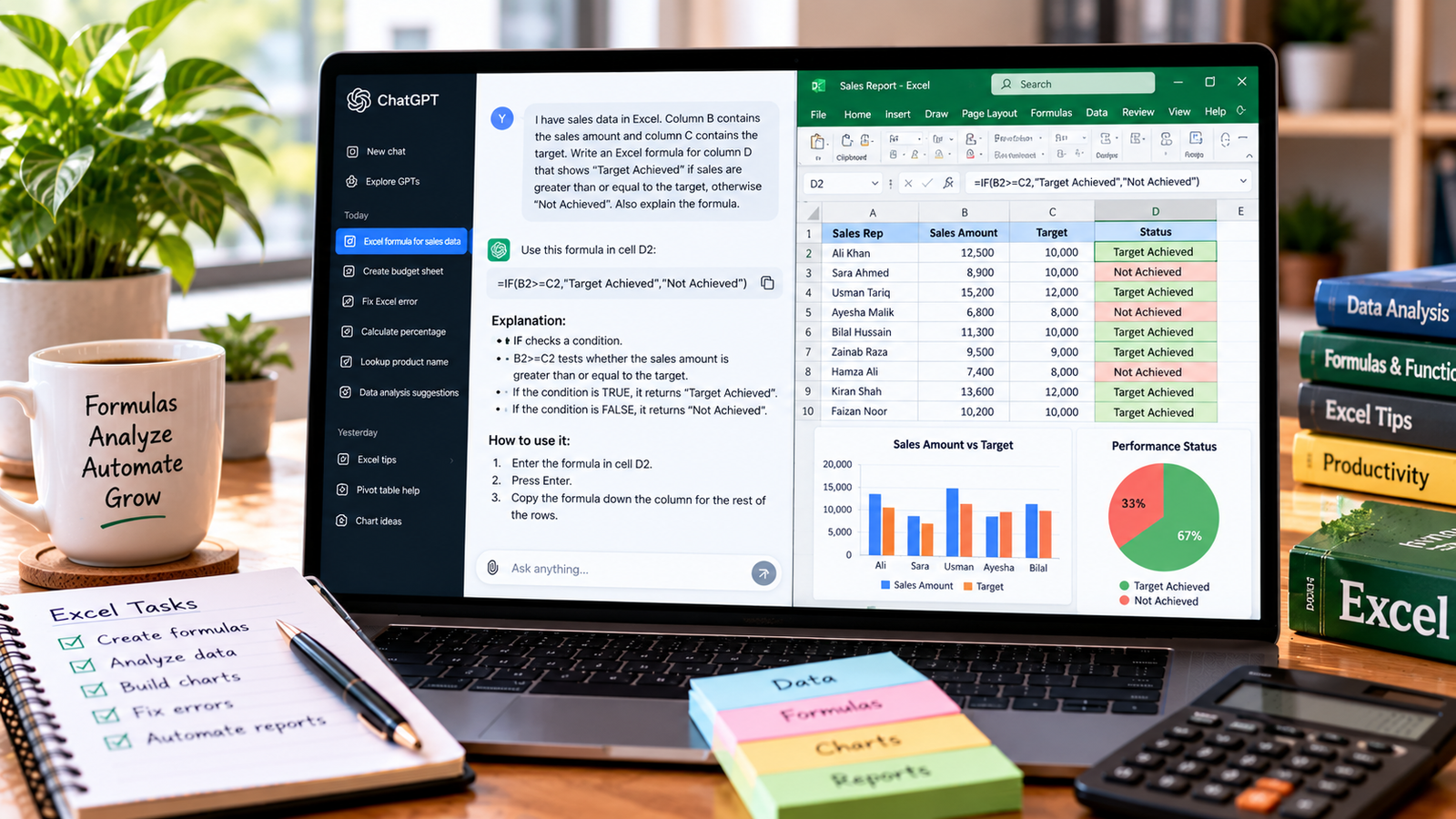
Creating an Excel spreadsheet can be time-consuming when you need to organize data, write formulas, calculate totals, and prepare charts. If you are not familiar with Microsoft Excel, even a simple spreadsheet can feel complicated.
ChatGPT can help you plan and build a spreadsheet by suggesting column headings, generating sample data, writing formulas, and explaining how to organize your information. Depending on the tools available in your ChatGPT account, it may also help create a downloadable Excel file.
In this guide, you will learn how to create an Excel spreadsheet with ChatGPT, build a practical example, add formulas, create charts, and check the final results.
What Can ChatGPT Do with Excel Spreadsheets?
ChatGPT can assist with many spreadsheet tasks, including:
- Creating spreadsheet layouts and column headings.
- Organizing data into tables.
- Generating formulas for calculations.
- Creating sample data for practice.
- Suggesting charts and summary tables.
- Identifying errors in formulas.
- Explaining Excel functions in simple language.
- Helping analyze sales, expenses, budgets, and other records.
ChatGPT can make spreadsheet creation easier, but it does not automatically guarantee that every formula, calculation, or data entry is correct. Review and test the results before using them for important decisions.
Step 1: Decide What Spreadsheet You Need
First, identify the purpose of your spreadsheet.
You might need an expense tracker, sales report, student marks sheet, inventory list, employee attendance register, or project tracker.
For this tutorial, we will create a simple monthly sales spreadsheet.
The spreadsheet will contain these columns:
| Column | Purpose |
|---|---|
| A: Product | Product name |
| B: Quantity | Number of units sold |
| C: Unit Price | Price per unit |
| D: Total Sales | Quantity multiplied by unit price |
| E: Sales Status | Indicates whether the sales target was met |
Defining the structure first helps ChatGPT generate more relevant formulas and instructions.
Step 2: Ask ChatGPT to Design the Spreadsheet
Open ChatGPT and start a new conversation.
Use this prompt:
Help me create an Excel spreadsheet for tracking monthly product sales. Include columns for product name, quantity sold, unit price, total sales, and sales status. Suggest appropriate formulas, explain how the columns should be organized, and provide five sample rows for testing. Use clear headings and simple instructions.
ChatGPT can suggest a table structure and sample information.
Review the proposed layout before entering it into Excel. Make sure it includes the information you need and does not contain unnecessary columns.
Step 3: Enter the Data in Microsoft Excel
Open Microsoft Excel and create a blank workbook.
Enter the column headings in the first row:
- A1: Product
- B1: Quantity
- C1: Unit Price
- D1: Total Sales
- E1: Sales Status
Then enter a few sample records.
| Product | Quantity | Unit Price | Total Sales | Sales Status |
|---|---|---|---|---|
| Notebook | 20 | 150 | 3,000 | On Target |
| Pen Set | 15 | 200 | 3,000 | On Target |
| Backpack | 5 | 2,500 | 12,500 | On Target |
| Calculator | 8 | 1,200 | 9,600 | On Target |
| Folder | 30 | 80 | 2,400 | On Target |
These are example values for learning purposes, not actual business sales.
For a cleaner layout, select your data and use Excel’s Format as Table option. This makes it easier to apply consistent formatting, filter records, and extend the table as you add data.
Step 4: Ask ChatGPT to Create Excel Formulas
One of the most useful features of ChatGPT is its ability to suggest formulas based on a plain-language description.
Calculate total sales
Suppose quantity is in column B and unit price is in column C.
Enter this formula in cell D2:
=B2*C2
This multiplies the quantity by the unit price.
For example, if you sell 20 notebooks at 150 each, the total is 3,000.
Copy the formula down the column to calculate sales for the other products.
Calculate the total sales amount
If your sales totals are in cells D2 through D6, use:
=SUM(D2:D6)
This adds all the sales values in the range.
Identify whether a target was achieved
Suppose the required sales target is stored in cell F1. You can use:
=IF(D2>=$F$1,"On Target","Below Target")
This formula checks whether the sales value in D2 meets or exceeds the target in F1.
The dollar signs keep the reference to F1 fixed when you copy the formula down the column.
For more formula examples, read our tutorial on how to use ChatGPT to create Excel formulas.
Step 5: Ask ChatGPT to Generate an Excel File
If your ChatGPT environment supports file creation, you can request a downloadable spreadsheet rather than building the entire workbook manually.
Try this prompt:
Create a downloadable Excel workbook for monthly sales tracking. Include product name, quantity sold, unit price, total sales, and sales status. Add formulas for total sales, a summary row, clear column headings, suitable number formatting, and a chart showing sales by product. Use the sample data below and make the workbook easy to edit. Explain how to check the formulas.
Provide your sample data below the prompt.
If file generation is available, ChatGPT may produce an .xlsx file for you to open in Excel. If it only returns instructions or formulas, use those to build the workbook manually.
After opening a generated file, verify that formulas calculate correctly and that the chart uses the intended data.
Step 6: Create Charts and Visual Summaries
Charts help you understand spreadsheet data more quickly.
For the sales spreadsheet, a column chart could compare total sales for each product.
Ask ChatGPT:
Recommend an appropriate Excel chart for comparing total sales by product. Explain which columns to select and how to insert the chart. Suggest a clear chart title and readable labels.
In Excel, you can generally create the chart by selecting the product names and total sales values, then choosing Insert and selecting a suitable chart type.
A column or bar chart is useful for comparing categories. A line chart is more appropriate when showing changes over time.
Do not create charts from sample or invented data and present them as actual business results.
Step 7: Format the Spreadsheet Professionally
A well-organized spreadsheet is easier to read and maintain.
Ask ChatGPT for formatting suggestions:
Recommend a clean professional format for my Excel sales spreadsheet. Suggest number formats for prices and totals, a style for the header row, suitable column widths, and ways to highlight important results without making the sheet cluttered.
Useful formatting practices include:
- Use clear, descriptive column headings.
- Format prices and totals consistently.
- Apply filters when working with many records.
- Freeze the header row if the sheet is long.
- Use conditional formatting to highlight important values.
- Keep colors consistent and avoid excessive decoration.
- Add a clear title to charts and summary sections.
Formatting improves readability, but it does not replace correct data or formulas.
Step 8: Check the Spreadsheet for Errors
Before relying on your workbook, test it carefully.
Use this prompt:
Review the structure and formulas of my Excel sales spreadsheet. Identify possible calculation errors, missing values, inconsistent formats, and incorrect assumptions. Explain what I should test manually. Do not claim to have checked cells or formulas that I have not provided.
Then check the workbook yourself:
- Confirm that the quantity and unit price values are correct.
- Test the total sales formula using a manual calculation.
- Verify that the summary total includes the correct rows.
- Check that the sales status formula uses the right target.
- Add a test row and confirm that formulas extend correctly.
- Check the chart labels and source data.
For financial or operational spreadsheets, validate important results independently before using them.
Useful ChatGPT Prompts for Different Excel Spreadsheets
You can adapt these prompts to build other types of workbooks.
Monthly Expense Tracker
Design an Excel expense tracker with columns for date, category, description, amount, and payment method. Include a total expense formula, a category summary, and suggestions for a chart. Explain how to update the tracker each month.
Student Marks Sheet
Create an Excel marks sheet with student names, subject marks, total marks, percentage, and result status. Explain the formulas and ensure the calculation follows the maximum marks and passing criteria I provide. Do not invent school grading rules.
Inventory Spreadsheet
Design an inventory spreadsheet with product ID, product name, opening stock, stock received, stock sold, and closing stock. Include a formula for closing stock and a way to highlight low inventory. Ask me for the minimum stock threshold if I have not provided one.
Employee Attendance Register
Create an Excel attendance register with employee names, dates, and attendance status. Suggest a layout and formulas for counting attendance days. Explain any assumptions and avoid including unnecessary personal information.
Project Tracker
Create an Excel project tracker with task name, assigned person, start date, due date, status, and priority. Suggest ways to highlight overdue tasks and summarize project progress.
For each prompt, replace example values and assumptions with information appropriate to your actual work.
Common Problems When Using ChatGPT for Excel
The Formula Does Not Work
Check cell references, parentheses, quotation marks, and argument separators. Some Excel settings use semicolons instead of commas between function arguments.
The Spreadsheet Has Incorrect Totals
Check whether the formula covers all required rows and whether the cells contain numbers rather than text. Compare the result with a manual calculation.
The Generated File Does Not Open
Try opening the file in a compatible spreadsheet application. If it is damaged or saved in the wrong format, request a new .xlsx file or rebuild the workbook using the provided data and formulas.
The Chart Shows the Wrong Values
Check the chart’s source range and confirm that the correct labels and numeric columns are selected.
ChatGPT Makes Assumptions
If you have not specified a target, tax rate, grading rule, or inventory threshold, ChatGPT may suggest a value. Tell it to ask for missing information rather than guessing.
Frequently Asked Questions
Can ChatGPT create an Excel spreadsheet automatically?
Depending on the tools available in your ChatGPT environment, it may be able to generate a downloadable Excel workbook. Otherwise, it can provide a table structure, formulas, sample data, and instructions for creating the spreadsheet in Excel.
Can I use ChatGPT with Excel for free?
You can use available ChatGPT access to get help with spreadsheet layouts and formulas, subject to current usage limits. File generation and other features depend on the tools available to your account.
Can ChatGPT analyze an existing Excel file?
If spreadsheet uploads and data analysis are available, you can upload a workbook and ask questions about its contents. Verify the analysis against the original data before relying on the results.
Is ChatGPT useful for Excel beginners?
Yes. Beginners can describe their goal in plain English and ask for formulas with explanations. This makes it possible to learn Excel while building practical spreadsheets.
Does ChatGPT replace Microsoft Excel?
No. ChatGPT can assist with spreadsheet design, formulas, and analysis, but Excel remains the application used to work with and manage the workbook unless you use another compatible spreadsheet program.
Final Thoughts
ChatGPT can help you create Excel spreadsheets by planning the layout, generating formulas, suggesting charts, and explaining how to organize your data. It is especially useful when you know what information you need but are unsure how to build the workbook.
Start with a clear goal, provide a sample of your data, and ask for formulas with explanations. Then test the results in Excel before using the spreadsheet for real work.
Related reading: How to use ChatGPT to create Excel formulas and more software tutorials on TechLabMind.
About the Author