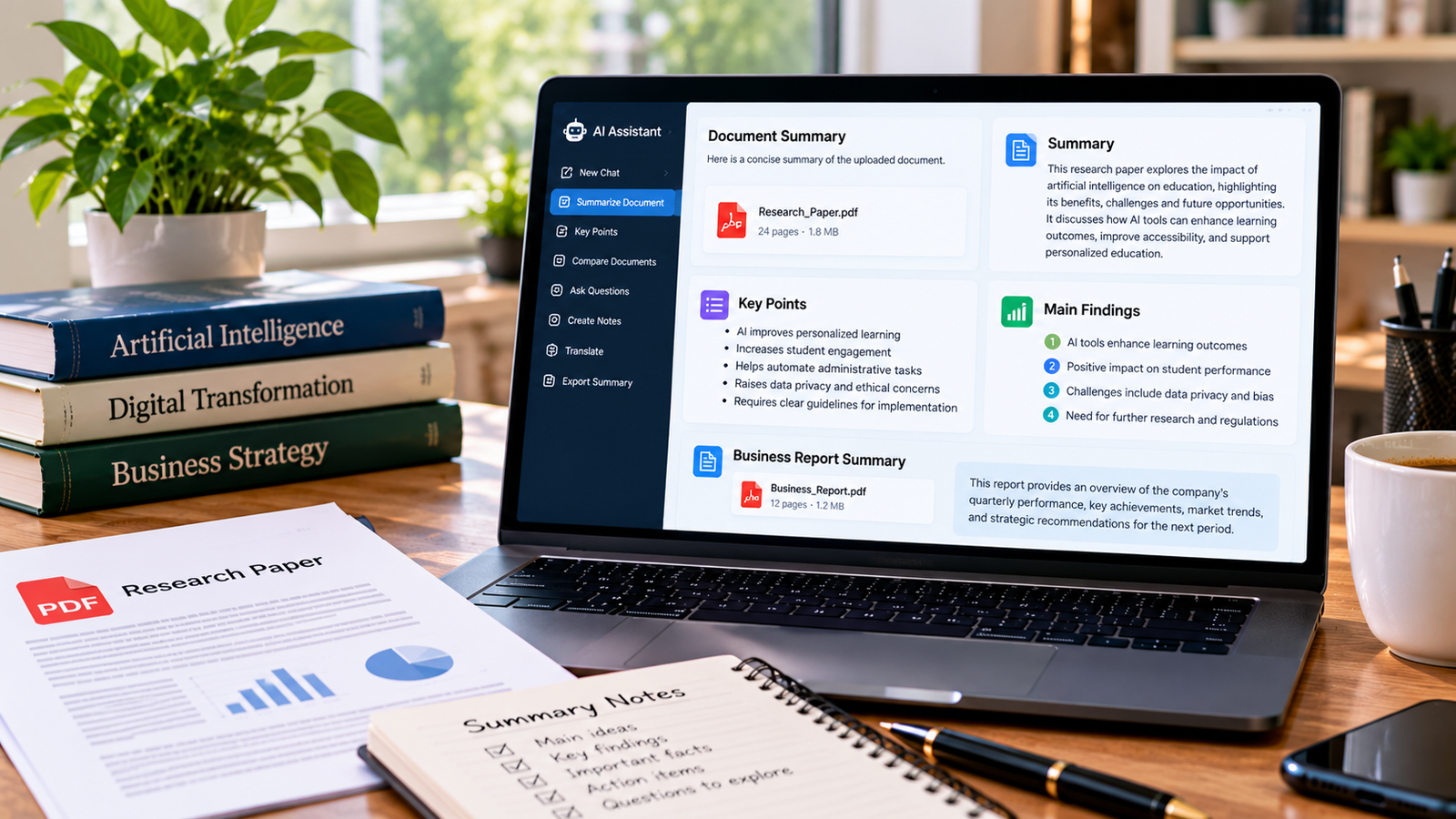
Reading a long document can take a lot of time, especially when you only need its main ideas, important findings, or practical recommendations. AI summarization tools can help you turn lengthy documents into shorter, easier-to-read summaries.
Students can use them to review study materials and research papers. Professionals can use them to understand reports, proposals, and business documents. The right tool depends on the type of file you have, how much text you need to summarize, and whether you need references to the original source.
In this guide, we compare five AI tools you can try for free, explain their main uses, and share practical tips for getting more accurate summaries.
1. ChatGPT
Best for: Summarizing documents and asking follow-up questions.
ChatGPT can work with supported file uploads and help you understand a document through a conversation. You can request a short overview, extract key points, explain difficult passages, or ask questions about the information in the file. The free plan offers file uploads with usage limits. OpenAI’s file upload guide explains supported workflows and restrictions.
Main features
- Summarizes supported documents and PDFs.
- Extracts key points, facts, and conclusions.
- Answers follow-up questions about uploaded content.
- Creates study notes, outlines, and structured summaries.
- Lets you refine the summary by asking for a different length or format.
How to use it
- Open ChatGPT and start a conversation.
- Select the attachment option and upload your document.
- Ask for a summary tailored to your needs.
- Request supporting details or page references where available.
- Compare important claims with the original document.
Example prompt:
Summarize this document in simple English. Give me the main idea, the seven most important points, the key evidence, and the conclusion. Do not include claims that are not supported by the uploaded file.
Limitations
Free usage is limited, and availability can vary by account and current service limits. Always check the original document for important figures, quotations, and conclusions.
Website: ChatGPT
2. QuillBot Summarizer
Best for: Quickly summarizing pasted text, essays, and shorter document sections.
QuillBot Summarizer is designed to shorten text while preserving its main ideas. It offers paragraph and bullet-point formats, which can be useful when preparing revision notes or condensing an article.
According to QuillBot’s help center, the free version supports up to 1,200 words per input, while Premium supports longer inputs and additional options. Limits and features may change, so check the current plan details before relying on a particular allowance. QuillBot’s free plan details
Main features
- Produces paragraph-style or bullet-point summaries.
- Helps condense essays, articles, and research text.
- Supports text input and document workflows described in its help center.
- Offers different summary formats.
How to use it
- Open the QuillBot Summarizer.
- Paste your text or upload a supported document.
- Choose the available summary format.
- Generate the summary and review the result.
- Compare it with the original before using it.
Limitations
The free input limit may be too small for long reports or complete research papers. You may need to divide a document into sections. A short summary can also omit qualifications or supporting evidence, so check details before using it in formal work.
Website: QuillBot Summarizer
3. Adobe Acrobat AI Assistant
Best for: People who work with PDFs and want summaries connected to the source document.
Adobe Acrobat includes AI features that can generate PDF summaries and answer questions about document content. Its documentation describes summaries with section overviews and links to relevant source content. Some AI features have limited free access, while expanded use requires a paid option. Adobe’s summary guide
Main features
- Generates summaries of PDF documents.
- Helps identify the purpose and structure of a document.
- Answers questions about PDF content.
- Provides links or references to relevant source sections in supported workflows.
- Supports follow-up questions about a document.
How to use it
- Open a supported PDF in Acrobat.
- Find the AI Assistant or summary option available in your version.
- Generate a summary or ask a specific question.
- Use the available source references to locate supporting information.
- Check important claims against the original PDF.
Limitations
Not every AI feature is available without payment. Access, request limits, and interface options depend on the version and plan. If you only need occasional summaries, check what is included in your account before upgrading.
Website: Adobe Acrobat
4. Google Gemini
Best for: People who already use Google’s tools and want help understanding documents.
Google Gemini can help with supported file-based tasks, including summarizing information and answering questions. Its available features and limits can vary by account, region, and plan.
Main features
- Helps summarize supported documents.
- Answers questions about uploaded content.
- Rewrites complex explanations in simpler language.
- Can help organize information into notes or an outline.
How to use it
- Open Gemini and sign in.
- Attach your document if file upload is available.
- Ask for a summary with a clear structure.
- Request the specific information you need.
- Check important facts against the source.
Limitations
Available file types, upload limits, and free usage can change. If the document contains complex tables, diagrams, or scanned pages, inspect the results carefully.
Website: Google Gemini
5. Google NotebookLM, now Gemini Notebook
Best for: Studying and researching information from a collection of sources.
Google announced in July 2026 that NotebookLM was being renamed Gemini Notebook. The product focuses on working with sources to support research and learning. Its features and access options may differ from those of a general-purpose chatbot. Google’s product announcement
Main features
- Helps organize and explore information from provided sources.
- Supports research and study workflows.
- Helps users ask questions about their source material.
- Can be useful when you need to compare ideas across multiple documents.
How to use it
- Open Gemini Notebook through Google’s official product access.
- Create a notebook and add supported sources.
- Ask a question about the materials.
- Request a summary of the most important themes.
- Check source references and confirm important conclusions.
Limitations
Feature availability and usage limits depend on your account and the current product offering. It may be more than you need if your only task is to shorten a single paragraph.
Website: Google’s Gemini Notebook announcement
Comparison of Free AI Document Summarizers
| Tool | Best use | Free access |
|---|---|---|
| ChatGPT | Interactive summaries and follow-up questions | Yes, with limits |
| QuillBot Summarizer | Shortening text into paragraphs or bullets | Yes, with input limits |
| Adobe Acrobat AI Assistant | Summarizing PDFs and following source references | Limited AI access may be available |
| Google Gemini | General document questions and summaries | Available with account and usage limits |
| Gemini Notebook | Research and studying from source collections | Availability and limits depend on the account |
Free features can change over time. Check each official website for the latest limits before choosing a tool for regular use.
Which AI Summarizer Should You Choose?
The best choice depends on your task.
- For general document questions: Try ChatGPT if you want to ask follow-up questions and adjust the summary through conversation.
- For shorter text: QuillBot can be convenient when you want a quick paragraph or bullet-point summary.
- For PDF-focused work: Try Adobe Acrobat if you want summary features integrated into your PDF workflow.
- For Google’s ecosystem: Gemini may be a practical starting point if you already use Google’s services.
- For source-based research: Gemini Notebook may suit projects that involve several documents and ongoing research.
You do not need to use all five tools. Start with one that supports your file type and gives you enough free usage for your task.
How to Get Better Results from Any AI Summarizer
The quality of a summary depends on both the document and the instructions you provide. These steps can help you get more useful results.
1. Be specific about your goal
Instead of writing “summarize this,” explain what you need. Ask for the main argument, key findings, important dates, recommendations, or definitions.
2. Choose the right length
A student preparing for an exam may need detailed notes, while a manager may need a brief overview. Tell the tool how long the summary should be and who it is for.
3. Work through long documents in sections
A very short summary may leave out important details. For lengthy reports or research papers, summarize each major section and then ask for an overall summary.
4. Ask for evidence
Request page references, relevant headings, or supporting passages where the tool can provide them. Open the original source and confirm that the evidence supports the summary.
5. Check facts and figures
Pay special attention to numbers, dates, quotations, names, and conclusions. AI-generated text can be incomplete or incorrect even when it sounds convincing.
6. Protect sensitive information
Before uploading a document, consider whether it contains personal, financial, business, or confidential information. Follow your organization’s rules and the service’s privacy terms.
Frequently Asked Questions
Are free AI summarizers accurate?
They can be useful, but no AI summarizer should be treated as automatically accurate. Tools can omit important details, misunderstand context, or make mistakes. Verify critical information against the original document.
Can AI summarize a full PDF?
Some tools accept PDF uploads, but the maximum file size, processing limits, and available features vary. If a long PDF is not handled well, try summarizing it section by section.
Which free AI tool is best for research papers?
ChatGPT can help explain and summarize a paper through follow-up questions. Gemini Notebook may be useful for research that involves multiple sources. The best option depends on your workflow, file limits, and need for source references.
Can I use AI summaries for school or university assignments?
AI summaries can help you understand material and prepare notes. Follow your institution’s academic integrity policy, read the original source, and write your final work in your own words with appropriate citations.
Do I need to pay to summarize documents with AI?
Not necessarily. Several tools provide free access with limits. You may need a paid plan for higher usage, longer inputs, or additional features.
Final Thoughts
Free AI tools can make document review faster by highlighting main ideas, explaining difficult sections, and turning long text into structured notes. ChatGPT, QuillBot, Adobe Acrobat AI Assistant, Gemini, and Gemini Notebook each suit different workflows.
Start with a tool that supports your document type, test it with a specific prompt, and check the summary against the original source. A clear request and careful review are more useful than relying on a tool to produce a perfect summary automatically.
Related guides: How to summarize a PDF with ChatGPT and how to extract key points from a PDF using AI.
About the Author