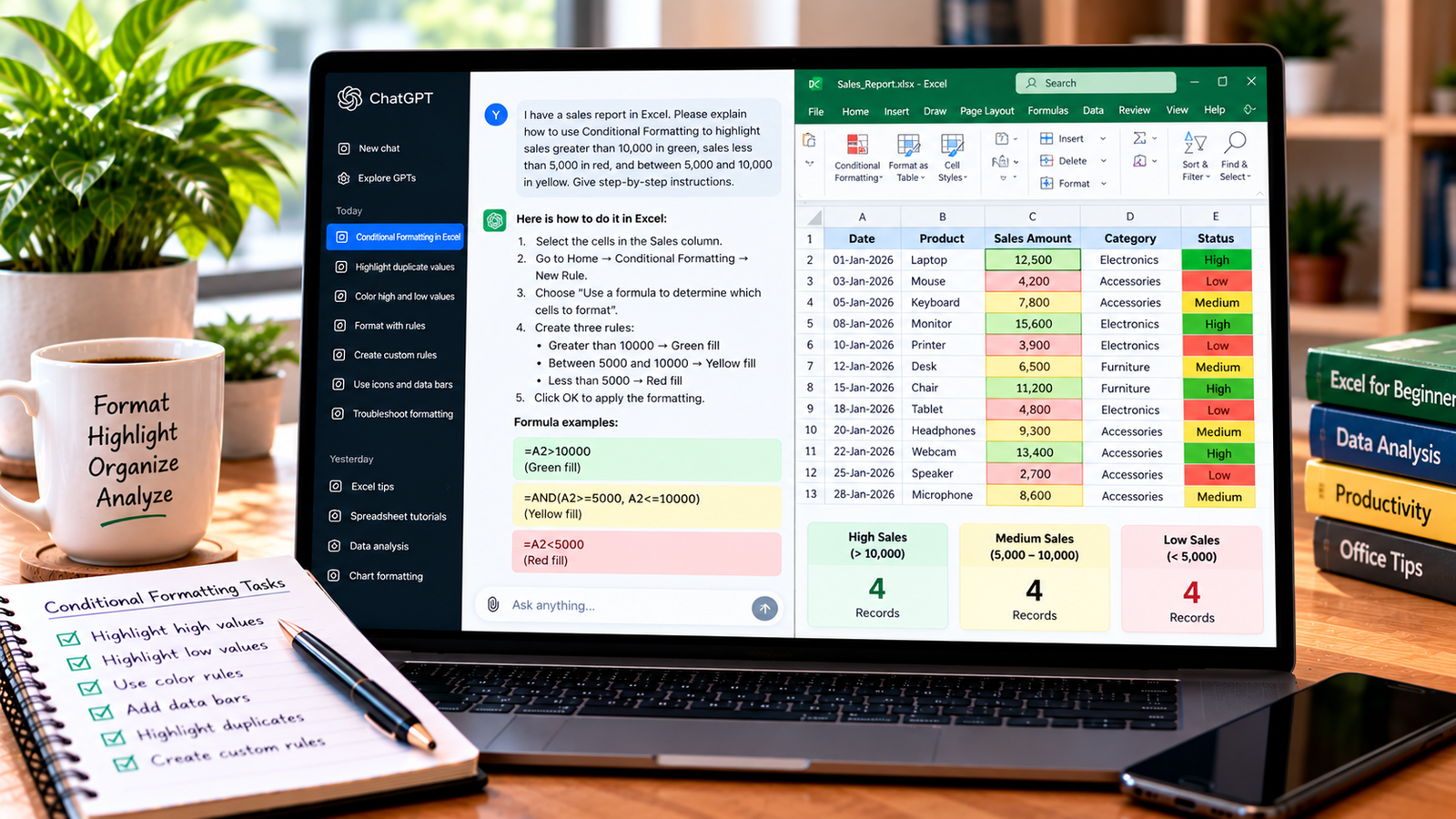
When working with large Excel spreadsheets, it can be difficult to spot important numbers, duplicate records, unusual values, or changes in performance. Conditional formatting helps solve this problem by automatically changing cell colors, text styles, or visual indicators according to rules you define.
ChatGPT can help you understand these rules, create custom formulas, and troubleshoot formatting problems. You can use it even if you are a beginner in Microsoft Excel.
In this guide, you will learn how to use conditional formatting in Excel with ChatGPT, including how to highlight high and low values, identify duplicates, create formula-based rules, and apply formatting to business reports.
What Is Conditional Formatting in Excel?
Conditional formatting is an Excel feature that changes how cells look when they meet specific conditions.
For example, you can use it to:
- Highlight sales above a target in green.
- Mark low sales in red.
- Identify duplicate email addresses or invoice numbers.
- Highlight overdue dates.
- Compare performance using color scales.
- Display data bars or icon sets to show differences between values.
The formatting updates when the underlying values change and the cells still fall within the rule’s applied range.
ChatGPT can help you select an appropriate rule or write a formula, but you must apply and verify the rule in Excel.
Step 1: Prepare Your Excel Data
Start with a simple spreadsheet. Imagine you have a sales report with the following columns:
| Date | Product | Sales Amount | Category |
|---|---|---|---|
| Jan 1, 2026 | Laptop | 12,500 | Electronics |
| Jan 3, 2026 | Mouse | 4,200 | Accessories |
| Jan 5, 2026 | Keyboard | 7,800 | Accessories |
| Jan 8, 2026 | Monitor | 15,600 | Electronics |
| Jan 10, 2026 | Printer | 3,900 | Electronics |
These are example values for demonstrating conditional formatting.
Before you begin, make sure your column headings are clear, the sales amounts are stored as numbers, and your data does not contain unnecessary blank rows.
Step 2: Ask ChatGPT to Recommend a Formatting Rule
First, explain what you want to highlight and why.
For example, suppose you want to display high sales in green, medium sales in yellow, and low sales in red.
Use this prompt:
“Act as an Excel expert. I have sales amounts in column C, starting at C2. Explain how to apply conditional formatting so values above 10,000 appear green, values from 5,000 to 10,000 appear yellow, and values below 5,000 appear red. Give me step-by-step instructions for Microsoft Excel.”
ChatGPT can recommend rules and explain how to apply them. Review the boundaries carefully: in this example, 5,000 and 10,000 belong to the yellow category, while values strictly above 10,000 or below 5,000 receive the other colors.
Step 3: Highlight High and Low Values
Excel provides built-in conditional formatting rules for highlighting cells based on their values.
To create the high-sales rule:
- Select the sales amount cells, such as C2.
- Open the Home tab.
- Select Conditional Formatting.
- Choose Highlight Cells Rules.
- Select Greater Than.
- Enter
10000. - Choose a green formatting style or create a custom format.
- Confirm the rule.
Repeat the process to create rules for values below 5,000 and values between 5,000 and 10,000.
For the middle range, choose Between and enter 5000 and 10000. If you want the range boundaries to behave differently, use formula-based rules and test the exact conditions.
This approach makes it easier to identify strong and weak sales results without manually reviewing each cell.
Step 4: Use ChatGPT to Create Custom Conditional Formatting Formulas
Built-in rules work well for simple conditions. Custom formulas are useful when formatting depends on several columns or more specific logic.
Suppose sales amounts are in column C, and you want to highlight the entire row whenever sales exceed 10,000.
Ask ChatGPT:
“Write an Excel conditional formatting formula that highlights the entire row from A2 to D100 when the value in column C is greater than 10000. Explain how to apply the formula and why the column reference should be fixed.”
A suitable formula is:
=$C2>10000
To apply it:
- Select the range
A2:D100. - Go to Home > Conditional Formatting > New Rule.
- Choose the option to use a formula to determine which cells to format.
- Enter
=$C2>10000. - Click Format and choose a fill color.
- Confirm the rule.
The dollar sign before C keeps the formula tied to column C, while the row number adjusts for each row in the selected range.
Always check the selected range and the first row in your formula. A mismatch can cause the formatting to appear on the wrong rows.
Step 5: Highlight Duplicate Values
Duplicate entries can create problems in customer lists, inventory records, and transaction reports. Conditional formatting can help you find repeated values before deciding what to do with them.
To highlight duplicate product names or IDs:
- Select the relevant column, such as A2.
- Open Home > Conditional Formatting.
- Choose Highlight Cells Rules > Duplicate Values.
- Select a formatting style.
- Confirm the rule.
Excel will highlight values that appear more than once within the selected range.
You can also ask ChatGPT:
“Explain how to highlight duplicate invoice numbers in Excel without deleting any records. My invoice numbers are in column A, starting at A2.”
If you need a formula-based rule, ChatGPT might suggest:
=COUNTIF($A$2:$A$100,A2)>1
Apply it to the appropriate range using a formula-based conditional formatting rule.
Remember that a duplicate value is not always an error. Some products, customers, or categories legitimately appear multiple times. Review the records before removing anything.
Step 6: Highlight Overdue Dates
Conditional formatting is also useful for tracking deadlines, payment dates, and tasks.
Suppose your due dates are in column D, and you want to highlight dates that are earlier than today.
You can ask ChatGPT:
“Create an Excel conditional formatting formula to highlight overdue dates in column D, starting at D2. Ignore blank cells and explain how to apply the rule.”
A possible formula is:
=AND($D2<TODAY(),$D2<>"")
Select your date range, create a formula-based conditional formatting rule, and apply the formula. Choose a noticeable formatting style for overdue dates.
This formula assumes the cells contain valid Excel dates. It also treats any past date as overdue, so it is suitable only if that matches your workflow. If completed tasks should not be highlighted, include the status column in the condition.
For example, if task status is in column E and completed tasks should be excluded, you could use:
=AND($D2<TODAY(),$D2<>"",$E2<>"Completed")
Check that your column references match your actual spreadsheet before applying the rule.
Step 7: Apply Color Scales, Data Bars, and Icon Sets
Excel includes visual formatting options that make comparisons easier.
Color scales use different colors to show relative values across a range. They are useful for spotting higher and lower numbers at a glance.
Data bars display a bar inside each cell, making it easier to compare values such as sales totals or inventory quantities.
Icon sets display symbols such as arrows or traffic-light indicators according to value thresholds.
To apply one of these options:
- Select your numeric range.
- Open Home > Conditional Formatting.
- Choose Color Scales, Data Bars, or Icon Sets.
- Select a suitable style.
- Review the result and adjust the rule if necessary.
Ask ChatGPT:
“Recommend a conditional formatting style for comparing monthly sales across 20 products. Explain when to use color scales, data bars, and icon sets, and how each choice affects readability.”
Choose the option that makes the data easier to interpret. Too many colors or symbols can make a report harder to read.
Step 8: Troubleshoot Conditional Formatting Problems
Sometimes conditional formatting does not work as expected. ChatGPT can help you identify likely causes.
The wrong cells are highlighted
Check the rule’s applied range and formula references. A formula designed for row 2 may behave incorrectly if the selected range starts on a different row.
Numbers are not being highlighted
The values may be stored as text rather than numbers. Check the cell format and test whether Excel recognizes the entries as numeric values.
Dates are highlighted incorrectly
Make sure the cells contain actual Excel dates and that the rule matches your intended definition of overdue or upcoming.
Multiple rules conflict
Open Conditional Formatting > Manage Rules to review the rules, their order, and their applied ranges. Where relevant, check the Stop If True setting.
Formatting does not update as expected
Check whether the changed cells fall within the rule’s applied range and whether the formula references the correct columns and rows.
When asking ChatGPT for help, include the formula, the selected range, the result you expected, and what Excel actually displayed. Avoid sharing sensitive spreadsheet data unnecessarily.
Best Practices for Using ChatGPT with Conditional Formatting
Follow these practices to make your formatting more reliable:
- Explain the business purpose of the rule.
- Specify the exact column letters and starting row.
- Define the boundaries clearly, including whether they are inclusive.
- Ask ChatGPT to explain every formula it provides.
- Test rules on a small sample before applying them to a large dataset.
- Use consistent colors throughout a report.
- Review overlapping rules and their order.
- Keep an unchanged copy of important workbooks.
ChatGPT can speed up rule creation, but the final result should always be checked in Excel.
Frequently Asked Questions
Can ChatGPT create conditional formatting rules in Excel?
ChatGPT can explain built-in rules, suggest custom formulas, and help troubleshoot problems. Whether it can directly modify your workbook depends on the tools and features available in your current setup.
Can I use ChatGPT to highlight duplicate values?
Yes. ChatGPT can explain Excel’s Duplicate Values rule or provide a formula such as COUNTIF to identify repeated entries. Review the records before deleting anything.
Can conditional formatting highlight an entire row?
Yes. Select the rows you want to format and use a formula-based rule. For example, =$C2>10000 highlights rows based on the value in column C, provided the selected range and starting row match the formula.
Does conditional formatting update automatically?
In general, conditional formatting recalculates when relevant cell values change. However, the rule must cover the correct range, and any formulas it uses must be set up properly.
Is ChatGPT useful for advanced Excel formatting?
It can help with formula-based rules, multiple conditions, date logic, and troubleshooting. Complex rules should be tested carefully, especially when the workbook is used for financial or operational reporting.
Final Thoughts
Conditional formatting makes Excel spreadsheets easier to scan by highlighting important values and patterns. ChatGPT can help you choose the right rule, create formulas, and troubleshoot formatting issues without requiring you to memorize every Excel feature.
Start with one clear rule, test it on your data, and expand your formatting only when it improves understanding. The best spreadsheet design is one that makes the important information easy to find.
About the Author