Creating a PowerPoint presentation involves more than adding text to slides. You need to organize your ideas, explain important points clearly, choose suitable visuals, and maintain a consistent design throughout the presentation.
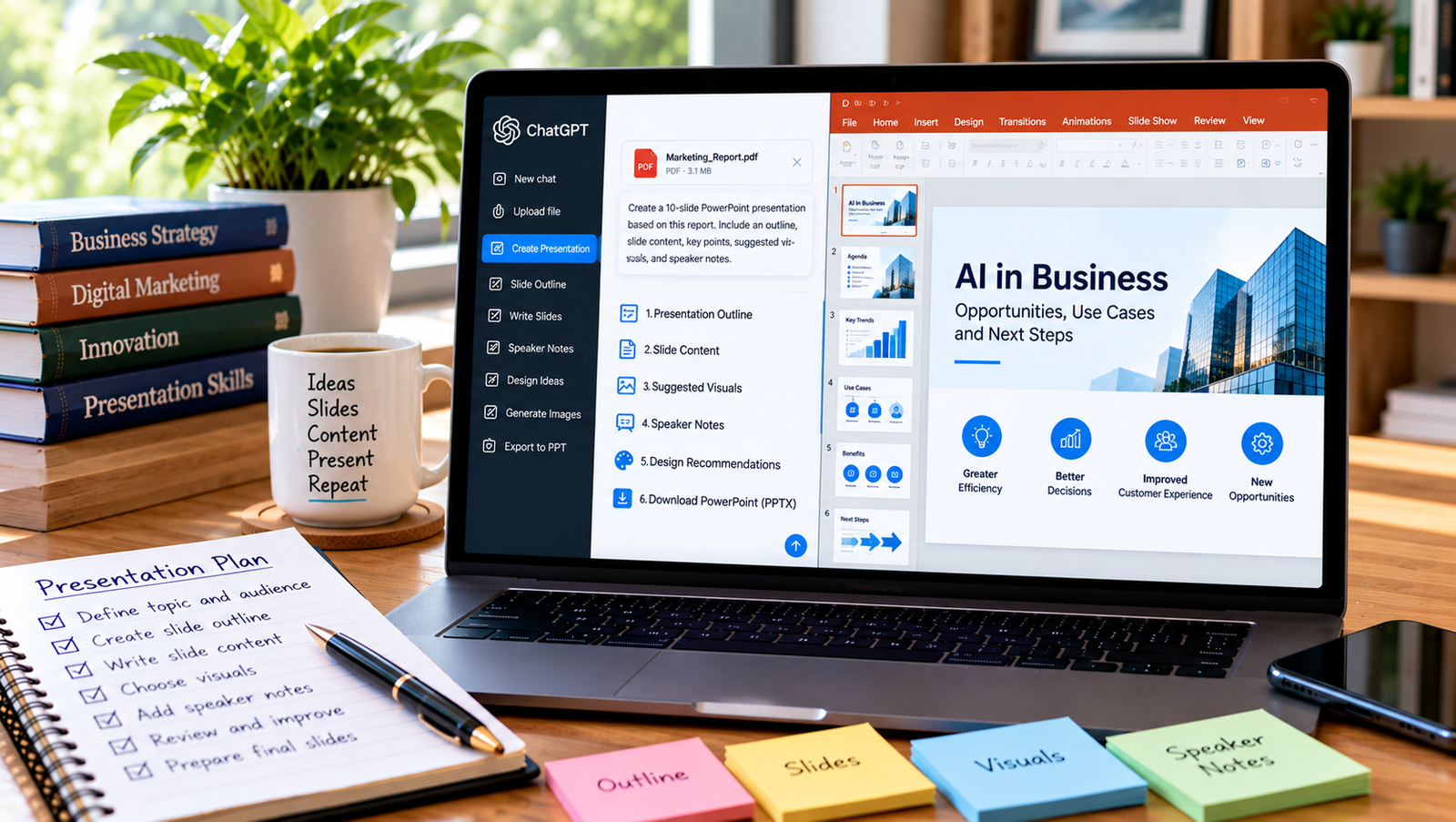
ChatGPT can help you plan this process by generating a slide outline, writing concise content, suggesting visual ideas, and preparing speaker notes. You can then use Microsoft PowerPoint or another presentation tool to build and refine your slides.
In this guide, you will learn how to create a PowerPoint presentation with ChatGPT, use effective prompts, and improve your slides before presenting them.
Can ChatGPT Create PowerPoint Presentations?
ChatGPT can help you develop presentation content and, depending on the available tools and features, may also help generate a downloadable presentation file.
You can use it to:
- Create a slide-by-slide outline.
- Write titles and concise bullet points.
- Summarize reports and research into presentation content.
- Suggest images, charts, and diagrams.
- Write speaker notes for each slide.
- Prepare an introduction and conclusion.
- Improve the structure and clarity of an existing presentation.
For the best results, treat ChatGPT as a presentation assistant. Review the content and design before using the presentation in a class, meeting, or business event.
Step 1: Define Your Presentation Topic
Before asking ChatGPT to create slides, decide what the presentation should achieve.
Consider these questions:
- What is the topic?
- Who will watch the presentation?
- How many slides do you need?
- How much time will you have to present?
- Should the tone be academic, professional, educational, or persuasive?
For example, a presentation for a university assignment may need definitions, examples, and references. A business presentation may need objectives, results, charts, and recommendations.
Providing this context helps ChatGPT produce more relevant content.
Step 2: Ask ChatGPT to Create a Slide Outline
Start by requesting the structure rather than generating every slide immediately.
Use this prompt:
Create a 10-slide PowerPoint outline about [topic] for [audience]. Include a title slide, introduction, key concepts, practical examples, supporting evidence where available, conclusion, and a final questions slide. Give each slide a clear title and a short description of its purpose. Avoid repeating the same information.
Review the outline before moving forward.
Make sure the order is logical and that each slide contributes something useful. If the presentation feels too broad, ask ChatGPT to narrow the topic.
Step 3: Generate Content for Each Slide
Once you approve the outline, ask ChatGPT to develop the slide content.
Try this prompt:
Write the content for each slide in the approved outline. Use a clear title and three to five concise bullet points per slide. Keep the language appropriate for the audience and avoid long paragraphs. Include examples where they improve understanding. Do not invent statistics, quotations, or sources.
Short bullet points are usually easier to read during a presentation than dense blocks of text.
If a topic requires more explanation, put the additional details in the speaker notes rather than overcrowding the slide.
Step 4: Ask for Speaker Notes
Speaker notes help you explain the content without putting every sentence on the screen.
Use this prompt:
Write speaker notes for each slide in this presentation. Explain the bullet points in natural spoken language, add transitions between slides, and include practical examples where appropriate. Aim for about 45 to 60 seconds of speaking time per slide, but keep the notes concise and relevant.
Read the notes aloud and adjust any wording that sounds unnatural.
For a short presentation, reduce the notes and focus on the most important messages. For a longer presentation, include more explanation where necessary.
Step 5: Choose a Design Style
The visual design should match the presentation’s purpose and audience.
Ask ChatGPT for a design plan:
Suggest a consistent PowerPoint design for this presentation. Recommend a color palette, font pairing, title and body text sizes, layout for each slide, and suitable visual elements. Use a clean, professional style with readable text and enough empty space.
You can request different approaches, such as:
- Minimal and professional.
- Modern business presentation.
- Academic and research-focused.
- Creative and colorful.
- Dark background with high contrast.
- Simple educational slides.
Choose one style and apply it consistently. Too many fonts, colors, and decorative effects can make a presentation harder to follow.
Step 6: Build the Slides in PowerPoint
After preparing the outline, content, and design plan, open Microsoft PowerPoint.
- Create a new presentation.
- Choose a suitable theme or template.
- Add the title slide.
- Create slides based on your approved outline.
- Paste the content into the appropriate layouts.
- Add relevant images, charts, and diagrams.
- Insert speaker notes where needed.
- Save the presentation as a PowerPoint file.
PowerPoint’s built-in layouts and design tools can help maintain consistent spacing and formatting.
If your ChatGPT environment supports file generation, you can also request a .pptx file directly. Check the resulting presentation carefully because generated layouts, text placement, or visuals may need adjustment.
Step 7: Add Images, Charts, and Diagrams
Visuals can make a presentation easier to understand, especially when explaining processes, comparisons, or data.
Ask ChatGPT to recommend visuals for each slide:
Review this presentation outline and suggest one useful visual for each slide. Recommend a chart, diagram, illustration, or photograph where appropriate. Explain what the visual should communicate and do not suggest charts unless the required data is available.
Examples of useful visuals include:
- A process diagram for explaining steps.
- A comparison table for evaluating alternatives.
- A bar chart for comparing categories.
- A timeline for showing events or milestones.
- An illustration for explaining an abstract concept.
Use real, verified data for charts. Do not present AI-generated figures as factual statistics.
If you use AI-generated images, inspect them for errors and make sure they support the message of the slide.
Step 8: Review and Improve the Presentation
Before presenting, ask ChatGPT to review the content.
Use this prompt:
Review this slide content for clarity, logical flow, grammar, repetition, and readability. Identify slides with too much text, unclear explanations, unsupported claims, or weak transitions. Suggest specific improvements without changing verified facts.
You can also request a separate fact-checking list of statistics, dates, quotations, and claims that need confirmation.
ChatGPT cannot guarantee that every claim is accurate, so verify important facts against reliable sources.
Finally, open the presentation in slideshow mode and check how it looks on the screen.
Useful ChatGPT Prompts for PowerPoint Presentations
Here are additional prompts you can save and reuse.
1. Create a Business Presentation
Create a 12-slide business presentation about [topic] for company managers. Focus on the current situation, main challenges, supporting evidence, possible solutions, recommendations, and next steps. Keep slide content concise and identify any data that needs to be supplied or verified.
2. Create an Educational Presentation
Prepare an educational PowerPoint about [subject] for [grade or student level]. Explain the main concepts in simple language, include examples, and suggest a visual for each major topic. Finish with five review questions.
3. Turn a Report into Slides
Convert the key information from this report into a PowerPoint outline. Identify the main findings, supporting evidence, risks, and recommendations. Organize the slides for an audience that needs to understand the report quickly. Do not invent facts or figures.
4. Improve Existing Slides
Review the content of these slides and suggest how to improve their titles, structure, and readability. Remove unnecessary repetition, keep important details, and recommend where a diagram or chart would communicate the message more clearly.
5. Create a Presentation Script
Write a natural speaking script for this presentation. Explain each slide in clear language, use transitions between topics, and keep the script suitable for a live audience. Do not simply read the slide bullets word for word.
Common Mistakes to Avoid
Putting Too Much Text on Each Slide
Long paragraphs are difficult to read while listening to a speaker. Keep the main slide content concise and move supporting explanations into speaker notes.
Using Unsupported Statistics
AI may produce figures or references that are inaccurate. Verify statistics, quotations, and claims before including them in a presentation.
Choosing Irrelevant Images
A visually attractive image is not always useful. Select visuals that explain a concept, illustrate a process, or support the main message.
Mixing Too Many Design Styles
Use a consistent color palette, typography, and slide structure. A coherent presentation usually looks more professional than a collection of unrelated layouts.
Forgetting the Audience
A presentation for beginners should explain terminology. A presentation for experts can focus more on analysis and evidence. Tell ChatGPT who the audience is before generating the slides.
Skipping the Final Review
Check spelling, slide order, text alignment, chart labels, references, and speaker notes. Practice the presentation to confirm that it fits the available time.
Frequently Asked Questions
Can ChatGPT create a PowerPoint file automatically?
Depending on the features available in your ChatGPT environment, it may be able to generate a downloadable PowerPoint file. Otherwise, you can use it to create the outline, slide content, speaker notes, and design instructions, then assemble them in PowerPoint.
Can I create a PowerPoint with ChatGPT for free?
You can use available ChatGPT access to plan and write presentation content, subject to usage limits. Direct file-generation capabilities may vary depending on the tools available to your account.
How many slides should a presentation have?
The ideal number depends on the topic and presentation length. A short classroom presentation may need five to eight slides, while a detailed business presentation may require more. Focus on covering the essential information rather than reaching a fixed slide count.
Can ChatGPT make professional business presentations?
It can help create a structured outline, concise content, speaker notes, and design recommendations. You should still review the final presentation for accuracy, branding, layout, and audience suitability.
Can ChatGPT convert a PDF into PowerPoint slides?
You can upload a supported PDF and ask ChatGPT to extract the key points and organize them into a slide outline. Whether it can create a downloadable PowerPoint file depends on the available file-generation tools. Check all extracted details against the original PDF.
Final Thoughts
ChatGPT can make PowerPoint creation more efficient by helping you plan the presentation, write slide content, prepare speaker notes, and choose suitable visuals.
Start with a clear objective and a slide outline, develop concise content, apply a consistent design, and review the finished presentation carefully. This approach helps you create slides that communicate your ideas clearly without overwhelming your audience.
Related reading: Explore more ChatGPT tutorials on TechLabMind.
About the Author