How to Improve Computer Performance: Top-Rated Tips and Expert Recommendations
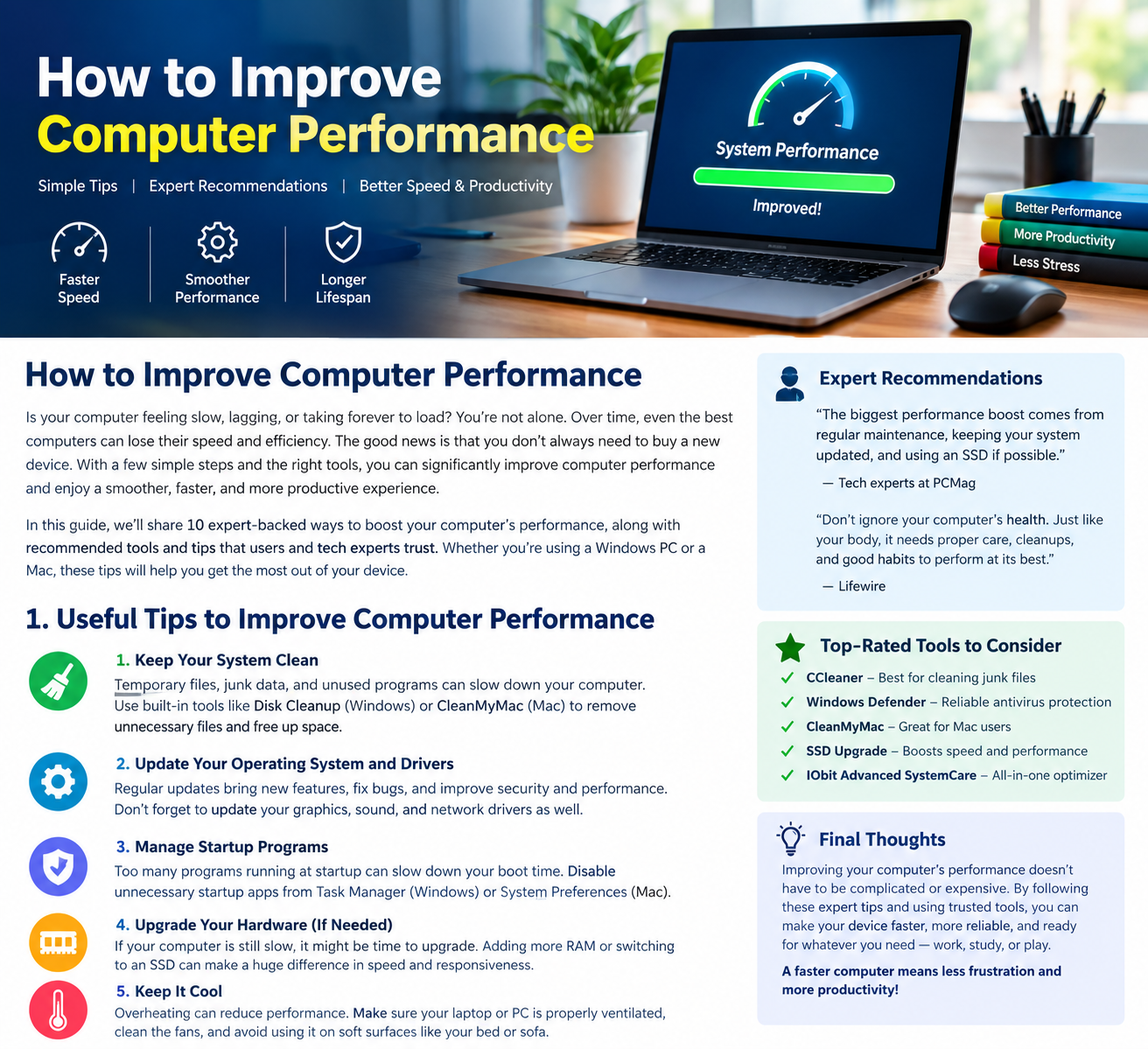
How to improve computer performance is a common question among people who experience slow startup times, freezing applications, lagging browsers, or unexpected system crashes. Whether you use your computer for office work, online learning, gaming, or entertainment, maintaining good performance is essential for productivity and a smooth digital experience.
Over time, computers can become slower because of unnecessary applications, limited storage, outdated drivers, malware, or insufficient hardware resources. Fortunately, you do not always need to purchase an expensive new computer. With a few practical adjustments and expert-recommended maintenance techniques, you can make your existing PC faster, more responsive, and more reliable.
In this guide, we will explore the most effective ways to optimize your computer, improve its overall performance, and maintain a healthy digital working environment.
1. Remove Unnecessary Programs and Applications
One of the easiest ways to improve computer performance is to remove applications you no longer use. Many programs consume system resources even when you are not actively using them.
Unnecessary software can take up valuable storage space, run background processes, and slow down your computer.
To remove unwanted programs:
- Open Windows Settings.
- Select Apps and then Installed Apps.
- Review the applications on your computer.
- Uninstall programs you no longer need.
Be careful not to remove essential Windows applications, hardware drivers, or security software. Removing unnecessary programs can free up storage and reduce background activity.
2. Disable Unnecessary Startup Programs
Does your computer take several minutes to start? Too many startup applications could be responsible.
Some programs automatically launch whenever you turn on your computer. Although this feature is convenient, running multiple applications simultaneously can increase startup time and consume memory.
Follow these steps:
- Press Ctrl + Shift + Esc to open Task Manager.
- Select Startup Apps.
- Review the applications listed.
- Identify programs with a high startup impact.
- Disable applications you do not need immediately after startup.
Keep essential security and system applications enabled. This simple adjustment can help your computer start faster and operate more efficiently.
3. Keep Your Operating System and Drivers Updated
Software updates are important for maintaining computer performance, security, and stability. Outdated operating systems and drivers may cause compatibility problems, software errors, and unnecessary performance issues.
Microsoft regularly provides Windows updates that include security improvements, bug fixes, and performance enhancements.
To check for updates:
- Open Settings.
- Navigate to Windows Update.
- Select Check for Updates.
- Download and install available updates.
- Restart your computer if required.
You should also check for appropriate graphics, audio, and chipset driver updates from your computer manufacturer’s official website.
Avoid downloading drivers from unknown websites because unofficial software can introduce security risks.
4. Free Up Storage Space Regularly
Insufficient storage space can affect your computer’s overall performance. Temporary files, old downloads, duplicate documents, and unused applications gradually occupy valuable disk space.
Keeping your storage organized is an important part of regular computer maintenance.
Here are some practical recommendations:
- Delete unnecessary temporary files.
- Remove duplicate downloads and documents.
- Uninstall unused applications.
- Empty the Recycle Bin.
- Use Windows Storage Sense to automate cleanup.
To access Storage Sense, open Settings, select System, and then choose Storage.
Regular cleaning helps maintain sufficient free space for Windows updates, temporary files, and everyday applications.
5. Protect Your Computer From Viruses and Malware
Malware can significantly affect computer performance by consuming processing power, memory, and disk resources. Some malicious programs also operate silently in the background.
For better performance and digital security, use trusted antivirus protection and perform regular security scans.
Windows Security provides built-in protection against many common threats.
To perform a scan:
- Open Windows Security.
- Select Virus & Threat Protection.
- Choose Quick Scan.
- Follow the recommended instructions if threats are detected.
Avoid suspicious downloads, unknown email attachments, and unreliable websites. Good cybersecurity habits help protect your files while keeping your computer stable.
6. Upgrade Your RAM and Storage Drive
If your computer remains slow after software optimization, hardware limitations may be responsible.
RAM (Random Access Memory) allows your computer to handle multiple applications simultaneously. When available memory becomes insufficient, multitasking can become noticeably slower.
Consider upgrading RAM if you frequently experience lag while using several applications.
Another worthwhile improvement is replacing an older mechanical hard drive (HDD) with a solid-state drive (SSD). SSDs generally provide significantly faster boot times, application loading, and file access.
Before purchasing hardware, check your computer’s compatibility, available slots, supported memory specifications, and storage interface.
7. Adjust Power Settings for Better Performance
Windows offers different power modes that balance performance and energy consumption.
If you need maximum performance for demanding applications, you can select the Best Performance power mode.
To change this setting:
- Open Windows Settings.
- Select System.
- Choose Power & Battery.
- Find Power Mode.
- Select Best Performance when appropriate.
Remember that higher-performance settings can increase electricity consumption, heat, and laptop battery usage. For everyday browsing and office tasks, balanced settings may be more suitable.
8. Maintain Healthy Digital Habits for Better Productivity
Improving computer performance is not only about hardware and software. Your daily habits also influence how efficiently you work.
Avoid keeping dozens of browser tabs open, running unnecessary applications, or downloading files without organizing them.
For better digital well-being, consider these habits:
- Take regular breaks from extended screen time.
- Keep your workspace clean and comfortable.
- Maintain an organized file management system.
- Avoid unnecessary multitasking.
- Get sufficient sleep and maintain healthy nutrition.
A balanced diet, proper hydration, and regular physical activity support personal energy, concentration, and general well-being. Although these habits do not directly increase computer processing speed, they can help you work more comfortably and productively.
9. Restart Your Computer Regularly
A simple restart can resolve many temporary performance issues.
When your computer remains switched on for extended periods, background processes and temporary system issues may affect responsiveness.
Restarting your PC closes running processes, refreshes system resources, and allows pending updates to complete.
If your computer becomes unusually slow, close your applications, save your work, and restart the device.
Conclusion
Learning how to improve computer performance does not have to be complicated or expensive. By removing unnecessary applications, managing startup programs, updating Windows, cleaning storage, scanning for malware, and upgrading outdated hardware when necessary, you can significantly improve your computer’s responsiveness.
The best approach is to combine regular software maintenance with sensible hardware upgrades and healthy digital habits. Start with the simple solutions before spending money on new components.
With consistent maintenance and expert-recommended optimization techniques, you can enjoy a faster, safer, and more productive computing experience.
About the Author