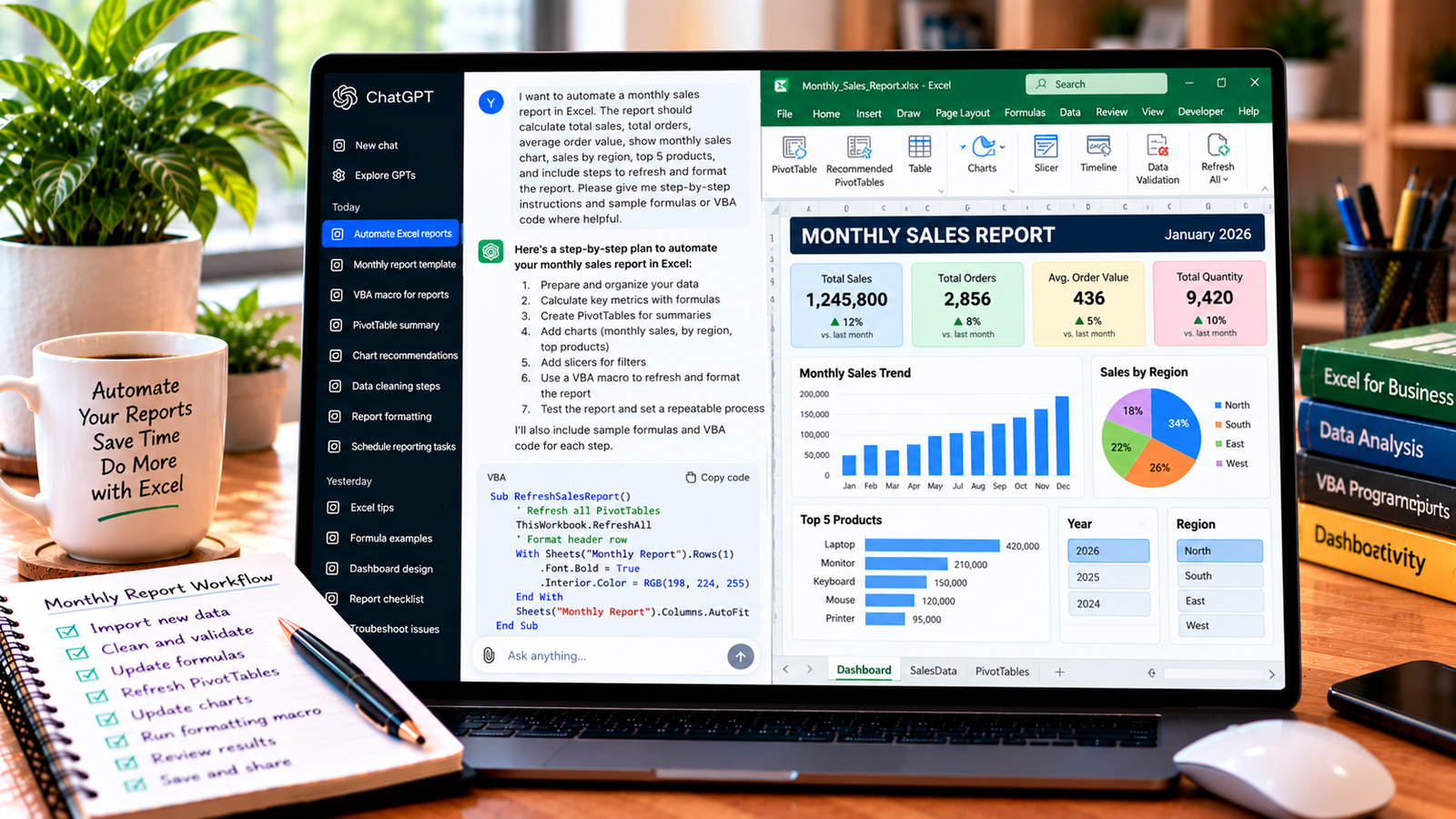
Managing a project involves more than listing tasks. You need to assign responsibilities, set deadlines, monitor progress, identify overdue work, and keep everyone informed.
Microsoft Excel can handle these tasks with a well-organized project tracker. ChatGPT can help you design the spreadsheet, create formulas, apply conditional formatting, and build a summary of project progress.
In this guide, you will learn how to create an Excel project tracker with ChatGPT, even if you have limited experience with Excel.
What Is an Excel Project Tracker?
An Excel project tracker is a spreadsheet used to monitor tasks, deadlines, responsibilities, and progress throughout a project.
It can help you answer questions such as:
- Which tasks are complete?
- Who is responsible for each task?
- Which deadlines are approaching?
- Which tasks are overdue?
- How much of the project is complete?
- What work needs attention next?
A tracker can be used for marketing campaigns, website development, office projects, content calendars, training programs, and many other types of work.
Step 1: Decide What Your Project Tracker Should Include
Before building the spreadsheet, identify the information you need to track.
For a basic project tracker, consider these columns:
| Task ID | Task Name | Owner | Start Date | Due Date | Status | Priority |
|---|---|---|---|---|---|---|
| T001 | Project planning | Ali | 2026-10-01 | 2026-10-05 | Completed | High |
| T002 | Design draft | Sara | 2026-10-06 | 2026-10-12 | In Progress | High |
| T003 | Content review | Ahmed | 2026-10-10 | 2026-10-15 | Not Started | Medium |
| T004 | Final approval | Sara | 2026-10-16 | 2026-10-20 | Not Started | Low |
These are example records. Replace the names and dates with your own project information.
You may also include columns for percentage complete, dependencies, notes, and actual completion dates if your project needs them.
Step 2: Ask ChatGPT to Design the Tracker
You can ask ChatGPT to recommend a layout before creating it.
Try this prompt:
“Act as an Excel project management expert. Design a project tracker for a small team. Include Task ID, Task Name, Owner, Start Date, Due Date, Status, Priority, and Percent Complete. Recommend suitable drop-down lists, formulas for overdue tasks, conditional formatting, and a summary section. Explain how to build it in Microsoft Excel step by step.”
ChatGPT can suggest the spreadsheet structure and explain the purpose of each field.
Review the recommendations before using them. For example, define what counts as an overdue task and decide how completed tasks should be treated.
Step 3: Create the Spreadsheet in Excel
Open Excel and create a blank workbook.
- Rename the first worksheet
Project Tracker. - Enter the column headings in row 1.
- Add your project tasks below the headings.
- Select the data range.
- Choose Insert > Table.
- Confirm that the table has headers.
- Give the table a descriptive name, such as
ProjectTasks, using the Table Design tab.
An Excel Table makes it easier to filter tasks, maintain consistent formatting, and extend formulas when new tasks are added.
You can also create separate worksheets for project settings, team members, or dashboard summaries if necessary.
Step 4: Add Drop-Down Lists for Status and Priority
Drop-down lists help team members use consistent values instead of entering different spellings for the same status.
For the Status column, you might use:
- Not Started
- In Progress
- Completed
- On Hold
For Priority, you might use:
- High
- Medium
- Low
To create a drop-down list:
- Select the cells in the Status column.
- Open Data > Data Validation.
- Choose List under Allow.
- Enter the status options in the Source field, separated by the appropriate list separator.
- Confirm that the in-cell drop-down option is enabled.
- Click OK.
Repeat the process for Priority.
For a larger tracker, keep the approved options on a separate worksheet and use that range as the source. This makes the lists easier to maintain.
Ask ChatGPT to help if you need instructions for your particular Excel version.
Step 5: Calculate Task Completion
A percentage-complete column helps you monitor how much work has been finished.
You can enter percentages manually, such as 0%, 25%, 50%, 75%, and 100%, or calculate overall progress from individual tasks.
For a simple tracker where every task has equal importance, you could calculate the average completion percentage using a formula such as:
=AVERAGE(ProjectTasks[Percent Complete])
This formula assumes that the table contains a column named Percent Complete and that the cells contain numeric percentage values.
However, a simple average may not accurately represent the overall project if some tasks require much more effort than others. For more realistic progress reporting, assign weights based on estimated effort or importance and calculate a weighted average.
You can ask ChatGPT:
“Create an Excel formula to calculate overall project progress from a Percent Complete column. Explain the difference between a simple average and a weighted average, and show how to handle blank task values.”
Verify that the calculation matches the method your team uses to report progress.
Step 6: Highlight Overdue Tasks Automatically
Conditional formatting can make overdue tasks easier to identify.
Suppose Due Date is in column E and Status is in column F, with the first task in row 2.
Select the task rows and create a new conditional formatting rule using a formula such as:
=AND($E2<TODAY(),$E2<>"",$F2<>"Completed")
Apply a red or other noticeable fill color to the selected range.
This formula highlights tasks with a due date before today, provided the task is not marked Completed and the due date is not blank.
Check that the column letters and starting row match your worksheet. If your tracker uses a different status label or a separate completion date, adjust the formula accordingly.
You can also create a separate rule for deadlines approaching within the next few days.
For example, a rule that highlights tasks due in the next seven days might use:
=AND($E2>=TODAY(),$E2<=TODAY()+7,$E2<>"",$F2<>"Completed")
These examples assume that the due dates are stored as real Excel dates.
Step 7: Add Filters to Manage Tasks
As a project grows, filtering becomes useful for finding specific tasks quickly.
Excel Tables include filter controls in their column headings. Use them to display:
- Tasks assigned to a particular team member.
- High-priority tasks.
- Tasks that are still in progress.
- Tasks due within a particular period.
- Completed work.
For example, filtering the Status column to show only In Progress tasks gives you a quick view of active work.
You can ask ChatGPT to recommend filters based on your team’s workflow. Keep the tracker easy to use, and avoid adding fields that nobody needs.
Step 8: Create a Project Summary Dashboard
A summary worksheet can show the overall status of your project without requiring users to inspect every task.
Useful summary metrics include:
- Total number of tasks.
- Completed tasks.
- Tasks in progress.
- Tasks not started.
- Overdue tasks.
- Overall percentage complete.
For example, if your task table is named ProjectTasks, a formula to count completed tasks could be:
=COUNTIF(ProjectTasks[Status],"Completed")
To count tasks currently in progress:
=COUNTIF(ProjectTasks[Status],"In Progress")
To count overdue tasks using the same assumptions as the earlier example, you could use:
=COUNTIFS(ProjectTasks[Due Date],"<"&TODAY(),ProjectTasks[Due Date],"<>",ProjectTasks[Status],"<>Completed")
Make sure the table column names match your workbook exactly. Test the overdue count against a few records to confirm that the formula handles blank dates and completed tasks as expected.
You can also add a bar chart showing tasks by status or a chart showing progress by team member. Choose visuals that help people understand the project at a glance.
Step 9: Ask ChatGPT to Improve Your Tracker
Once the basic tracker works, ask ChatGPT to review the design or suggest useful improvements.
For example:
“Review this Excel project tracker structure and recommend improvements for a team of five people. I need to track owners, priorities, deadlines, task dependencies, and completion percentages. Suggest useful formulas and formatting, but keep the spreadsheet simple for beginners.”
If you upload a spreadsheet for analysis, remove confidential information when possible and ensure that you are permitted to share the file.
ChatGPT can suggest improvements, but test any formulas or changes in a copy of the workbook before applying them to your working tracker.
Common Mistakes to Avoid
Using inconsistent status labels
Values such as “In Progress,” “In progress,” and “Ongoing” can make summaries unreliable. Use standardized drop-down options.
Treating every task as equally important
A simple average of task completion percentages may misrepresent progress when tasks differ significantly in effort. Use an appropriate weighting method if necessary.
Forgetting to update task status
An overdue formula cannot compensate for outdated task information. Keep the tracker updated as work progresses.
Using incorrect date formats
Make sure Excel recognizes due dates as actual dates, not text. Otherwise, sorting and deadline formulas may not work as expected.
Adding too many columns
Include the information your team needs, but avoid making the tracker so complicated that people stop maintaining it.
Frequently Asked Questions
Can ChatGPT create an Excel project tracker?
ChatGPT can design the structure, generate formulas, suggest conditional formatting rules, and explain how to build the tracker. Directly creating or editing a workbook depends on the tools and features available in your current setup.
How do I track overdue tasks in Excel?
Use a conditional formatting formula that compares each due date with today’s date and excludes completed tasks. Make sure the formula references the correct columns and that the dates are valid Excel dates.
Can Excel automatically calculate project progress?
Yes. You can use formulas to calculate progress from task percentages or completion statuses. Choose a method that reflects the importance and effort of each task.
Is Excel suitable for project management?
Excel is useful for small and moderately complex projects that need task tracking, deadlines, filters, and summaries. Larger projects with complex dependencies, collaboration needs, or resource planning may benefit from dedicated project management software.
Can I use the same tracker for multiple projects?
Yes. You can add a Project Name or Project ID column and use filters to separate tasks. For larger workflows, separate project tables or a dedicated dashboard may be easier to manage.
Final Thoughts
Creating an Excel project tracker with ChatGPT can help you organize tasks, monitor deadlines, and understand progress more clearly.
Start with a simple table, standardize your status values, add formulas for key metrics, and use conditional formatting to identify tasks that need attention. Test the calculations and keep the information updated so that your tracker remains useful throughout the project.
About the Author